Blog

  • PGP Email Encryption: What It Is and How to Encrypt Your Forwarded Mail

    PGP Email Encryption: What It Is and How to Encrypt Your Forwarded Mail

    PGP encryption has landed in Alias Email. You can now attach a recipient’s PGP public key to any of your forwarding addresses, and we automatically encrypt every message forwarded to it — so only that recipient can read it, not their mailbox provider and not us. It’s available on Premium. Here’s what that means, why it matters, and how to switch it on.

    Almost all email today is encrypted in transit — the connection between mail servers is protected by TLS. But that protection ends the moment the message lands. According to Google’s email encryption transparency report, encryption in transit only guards the hop between servers; once an email is delivered, it sits in your mailbox as plain text that your provider can read, that gets indexed and scanned, and that is exposed in full if that mailbox is ever breached. In-transit encryption is the envelope on a letter — it stops nothing once the letter is opened and filed away.

    Email aliases and forwarding solve one half of the privacy problem: they hide your real address so services never learn who you are. But the content of every forwarded message still travels through servers and comes to rest in your inbox unencrypted. PGP encryption closes that second gap. This guide explains what PGP email encryption is, why it matters specifically for forwarded mail, exactly what it does and doesn’t protect, and how to turn it on for the emails your aliases forward to you.


    Table of Contents

    1. What Is PGP Email Encryption?
    2. Why Standard Email Isn’t Private
    3. Where Email Forwarding Adds Risk
    4. How PGP Closes the Gap
    5. What PGP Does and Doesn’t Protect
    6. How to Encrypt Forwarded Email in Alias Email
    7. How to Get a PGP Key Pair
    8. Key Takeaways
    9. FAQs

    What Is PGP Email Encryption?

    PGP — short for “Pretty Good Privacy” — is a standard for encrypting messages so that only the intended recipient can read them. The open version that powers most modern tools is called OpenPGP, defined in the IETF’s RFC 4880. It has been the backbone of serious email privacy for over 30 years, and it is what journalists, security researchers, and privacy-focused mail providers rely on for end-to-end protection.

    PGP works with a pair of mathematically linked keys:

    • A public key, which you can share freely. Anyone can use it to encrypt a message addressed to you, but it cannot decrypt anything.
    • A private key, which never leaves your device. It is the only thing that can decrypt messages that were encrypted with your public key.

    The magic of this design is that encryption and decryption use different keys. To send you a private message, someone only needs your public key — and even if they, or an eavesdropper, or the server passing the message along has that public key, none of them can read the result. Only your private key, held on your device, can unlock it. This is what “end-to-end encryption” means: the message is sealed at one end and can only be opened at the other, with nothing in between able to look inside.

    Why Standard Email Isn’t Private

    Email was designed in the 1970s and 1980s with no privacy built in. Every improvement since — including the TLS encryption that protects messages between servers today — has been bolted on around a system that, at its core, moves plain text. That leaves several points where your mail is fully readable:

    • At rest in your mailbox. Once delivered, your email is stored unencrypted on your provider’s servers. The provider can scan it for advertising signals, feature training, or spam filtering, and staff or automated systems can access it.
    • In a breach. If your mailbox provider is compromised — or if you reuse a password that leaks — an attacker who gets in can read years of correspondence. As we cover in what happens when your email is leaked in a data breach, exposed inboxes are a goldmine for identity theft and targeted phishing.
    • Through intermediaries. Mail often passes through relays, forwarders, and filtering services. Each one handles the message in the clear.

    TLS is genuinely important — it stops passive interception on the wire — but it is transit-only. The instant a message reaches a mailbox, it becomes a plaintext document sitting on someone else’s computer. If you want content that stays private even from the servers that store it, you need encryption that only you can undo. That is exactly what PGP provides.

    Where Email Forwarding Adds Risk

    Email aliases are one of the best privacy tools available: instead of handing your real address to every store, app, and newsletter, you give out a unique alias that quietly forwards to your real inbox. If an alias starts getting spam or shows up in a breach, you disable it and your real address is never exposed. (If you’re new to the concept, our guide on email aliases vs. forwarding breaks down how the two relate.)

    But forwarding introduces an extra leg to the journey. A message now travels from the sender, to the alias/forwarding service, and then on to your real mailbox — and every one of those hops handles the message content. The forwarding service is, by definition, a middleman that receives your mail before passing it along. That is a reasonable thing to trust for routing, but it is one more place where plaintext exists, and one more mailbox (your real one) where the forwarded copy comes to rest unencrypted.

    A privacy-respecting forwarder should minimize this. At Alias Email we don’t read your mail, we store messages for a maximum of three days, and everything runs over TLS with SPF and DKIM. But “we don’t read it” is a policy. PGP turns it into math: when the forwarded message is encrypted to your key, we can’t read the content even if we wanted to, and neither can your mailbox provider once it arrives.

    Create alias in seconds

    Start protecting your inbox now — it’s free!

    Create my first alias

    How PGP Closes the Gap

    When you attach a recipient’s PGP public key to a forwarding address, the forwarding step changes. Instead of relaying the message as-is, Alias Email encrypts the forwarded copy with that public key before it leaves our servers. From that point on:

    • Only the private key holder can read it. The message that lands in your mailbox is ciphertext. Your email provider stores an unreadable blob; you decrypt it locally with your private key when you open it.
    • A mailbox breach exposes nothing useful. If your real inbox is ever compromised, the forwarded messages are encrypted at rest — an attacker sees scrambled data, not your correspondence.
    • The forwarder is removed from the trust equation. Because encryption happens on the way out and only your device holds the private key, the content’s privacy no longer depends on trusting the service to behave.

    In short, PGP takes the one remaining plaintext copy — the forwarded message sitting in your inbox — and seals it so that you, and only you, can open it. Combined with aliases hiding your address, you get privacy on both fronts: who you are and what was said.
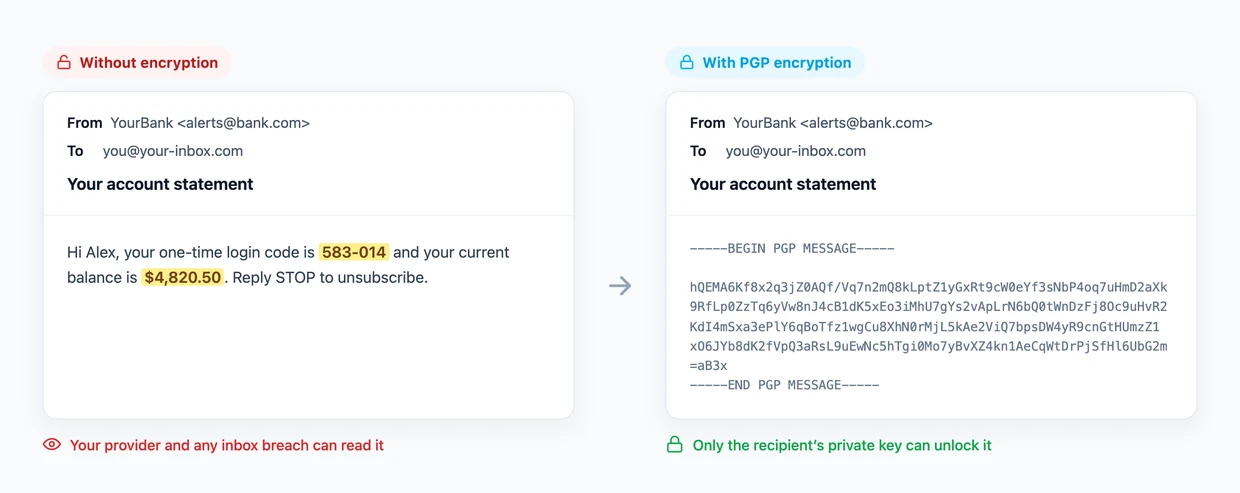
    The same email without PGP encryption (readable) versus with PGP encryption (scrambled ciphertext)

    What PGP Does and Doesn’t Protect

    PGP is powerful, but it is not magic, and understanding its limits is part of using it well.

    What it protects

    • The message body and attachments of the forwarded email, encrypted so only your private key can decrypt them.
    • Content at rest in your real mailbox, so your provider and any future breach see only ciphertext.

    What it doesn’t protect

    • Metadata. The routing information — who sent the message, the delivery path, timestamps, and typically the subject line — is not encrypted by PGP. If a subject line is sensitive, treat it as public.
    • The first hop. The original sender still emails your alias over ordinary email. That leg is protected by TLS in transit but is not end-to-end encrypted, because the sender doesn’t hold your PGP key. PGP protects everything from the forwarding step onward — the copy that reaches and rests in your inbox.
    • A lost private key. If you lose your private key, no one — including you — can decrypt those messages. There is no password-reset backdoor. That is the point, and it’s why key backups matter.

    Think of PGP as sealing the forwarded copy the moment it’s in our hands and keeping it sealed through storage in your inbox. It closes the biggest and most persistent exposure — plaintext at rest — even though it can’t rewrite how email routing fundamentally works.

    How to Encrypt Forwarded Email in Alias Email

    Alias Email supports per-recipient PGP encryption on Premium. “Per-recipient” means encryption is tied to the address that receives the forwarded mail, so each of your forwarding destinations can have its own key. Here’s how to set it up:

    1. Get the recipient’s PGP public key. If you’re forwarding to your own inbox, that’s your public key (your private key stays with you). If you don’t have one yet, see the next section.
    2. Open your account settings. Sign in to the Alias Email dashboard and go to Settings, where your recipient (forwarding) email addresses are listed.
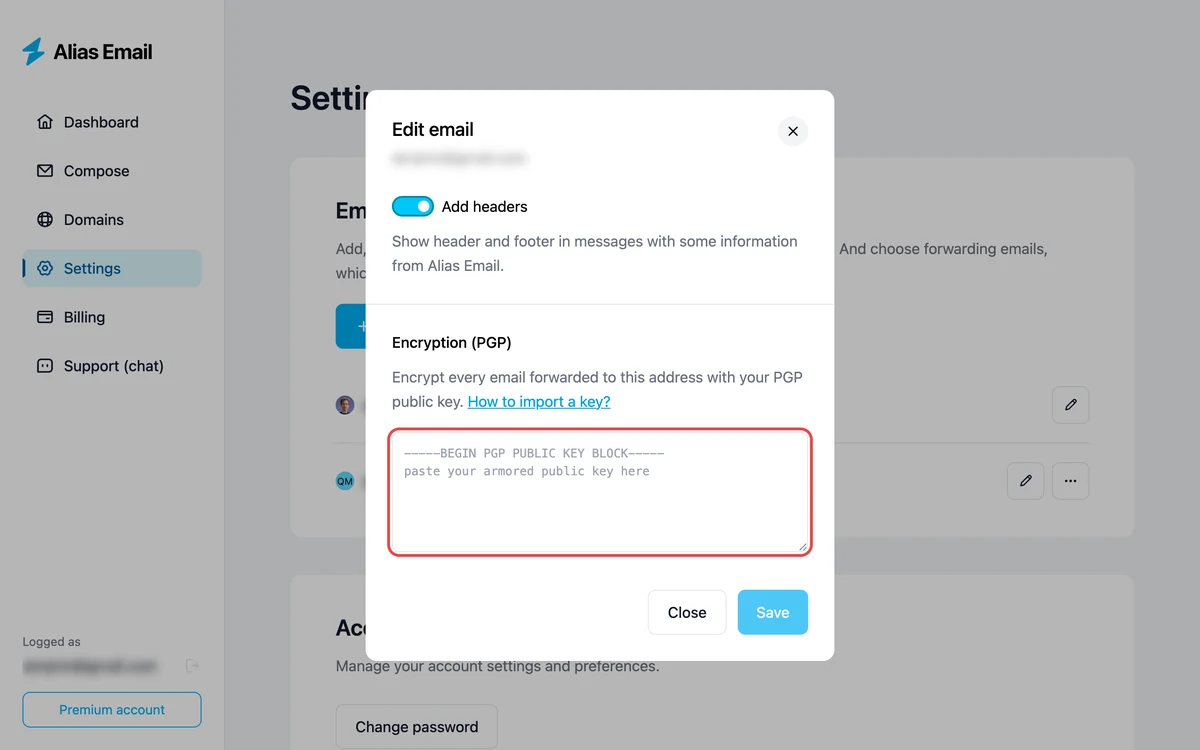
    3. Edit the recipient address. Open the address you want to secure and choose to configure its PGP key.
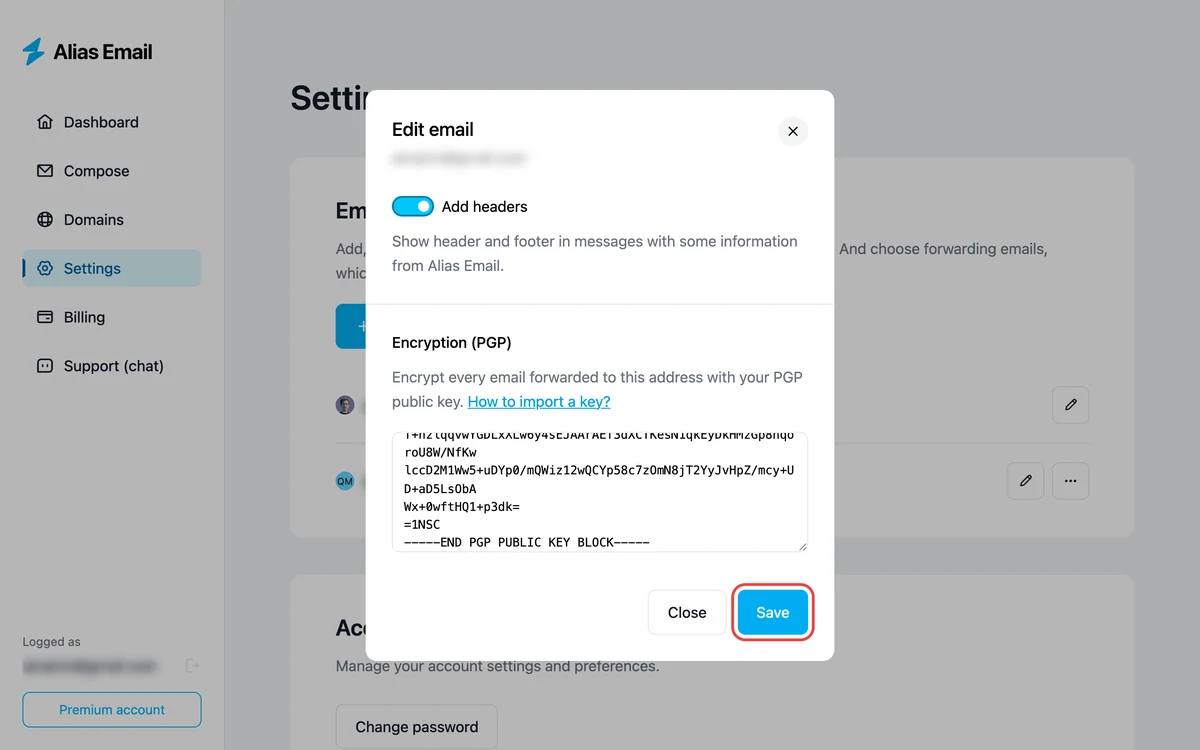
    4. Paste the public key. Copy the recipient’s ASCII-armored public key — the block that starts with -----BEGIN PGP PUBLIC KEY BLOCK----- — into the field and save.
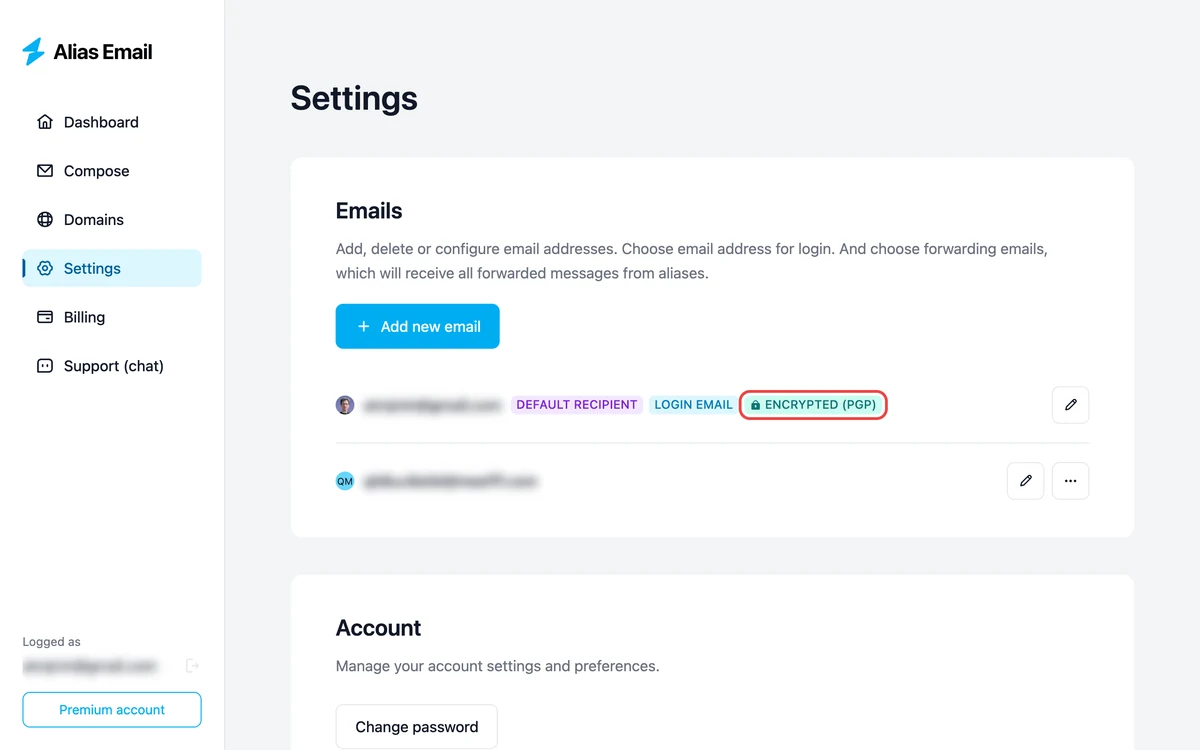
    5. You’re done. From that moment, every email forwarded to that address is encrypted with the key before it leaves our servers. To turn encryption off, simply remove the key.
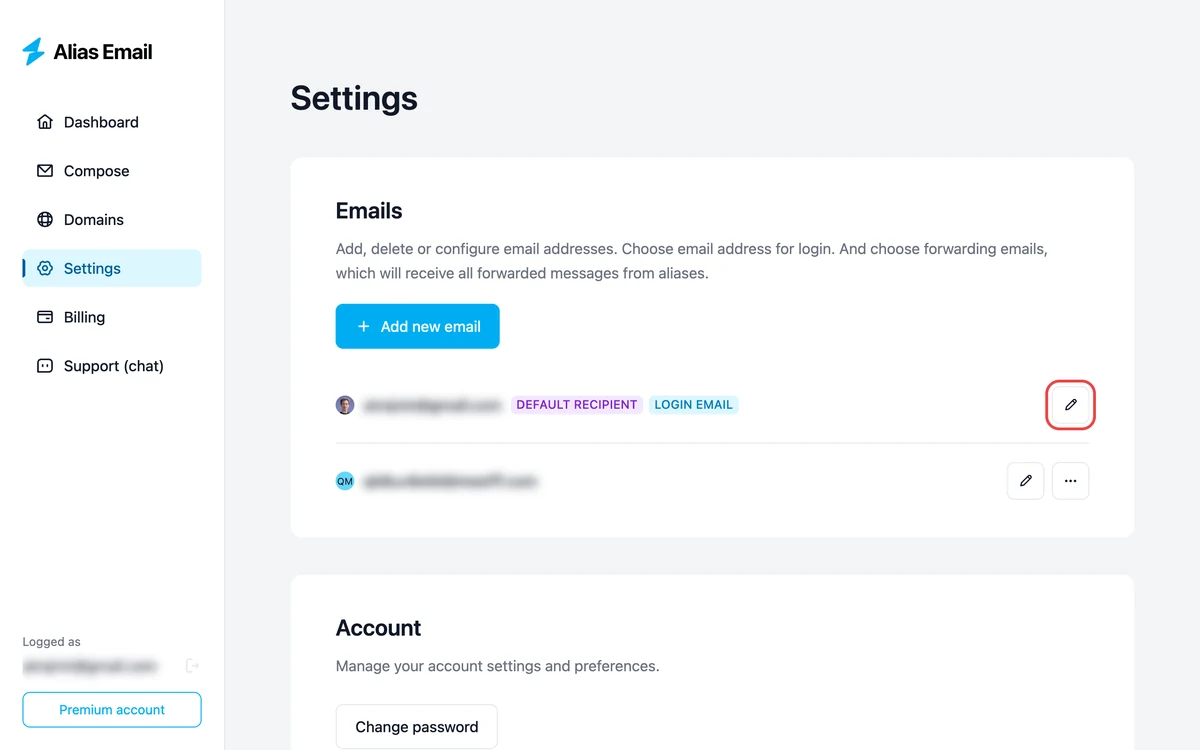
    Settings → Emails with the edit button on a recipient highlighted
    Adding a recipient's PGP public key in Alias Email settings
    Pasting the recipient's PGP public key and saving in Alias Email
    The recipient marked Encrypted (PGP) after saving

    Because the setting lives on the recipient address, you stay in control: add a key to lock a destination down, update it when you rotate keys, or remove it to go back to standard forwarding. Your aliases keep working exactly as before — the only change is that the mail arriving at a keyed destination is now sealed.

    How to Get a PGP Key Pair

    If you don’t already have a PGP key, creating one is free and takes a few minutes. A few common routes:

    • GnuPG (GPG) — the free, open-source reference implementation. Install GnuPG (or a friendly front-end like GPG Suite on macOS or Gpg4win on Windows) and generate a key pair with a single command or a guided dialog.
    • Your email client. Thunderbird has built-in OpenPGP support; browser extensions like Mailvelope add PGP to webmail. Many privacy-first providers, such as Proton Mail, manage keys for you automatically.

    Whichever tool you use, the rules are the same: export and share the public key (that’s what goes into Alias Email), and keep the private key private and backed up. The EFF’s Surveillance Self-Defense guides are an excellent, plain-language walkthrough if you want to go deeper. Once your public key is in hand, adding it to a forwarding address takes about thirty seconds.


    Key Takeaways

    • TLS is transit-only. Standard email is encrypted between servers but stored as plain text in your mailbox, where providers and breaches can read it.
    • Aliases hide who you are; PGP hides what was said. Together they protect both your address and your message content.
    • Forwarding adds a plaintext copy. PGP encryption seals the forwarded message so only your private key can open it — removing the need to trust the forwarder or your mailbox provider with the content.
    • Know the limits. PGP protects the message body and attachments, not metadata or the subject line, and there’s no recovery if you lose your private key.
    • Setup is quick. On Premium, paste a recipient’s public key onto a forwarding address and every message to it is encrypted automatically.

    FAQs

    Do I need to be technical to use PGP with Alias Email?

    Not really. The one-time step is generating a key pair, which modern tools like GPG Suite, Gpg4win, or Thunderbird make point-and-click. After that, you just paste your public key into Alias Email once, and encryption happens automatically for every message forwarded to that address.

    Does PGP encryption hide the subject line?

    No. Standard PGP encrypts the message body and attachments, but the subject line and routing metadata (sender, recipient, timestamps) are not encrypted. Avoid putting sensitive information in subject lines, and treat them as if they were public.

    Can Alias Email read my encrypted mail?

    Once a public key is set on a recipient address, the forwarded message is encrypted with that key before it leaves our servers, so we cannot read the content — only the holder of the matching private key can. As a policy we don’t read your mail regardless, but PGP turns that promise into cryptographic fact.

    What happens if I lose my private key?

    Messages encrypted to that key become permanently unreadable — there is no backdoor or reset, which is exactly what makes PGP secure. Always back up your private key somewhere safe (an encrypted drive or password manager), and keep a revocation certificate so you can retire a compromised key.

    Is PGP encryption available on the free plan?

    Per-recipient PGP encryption is a Premium feature. The free plan still gives you aliases, forwarding, and tracking protection; adding a PGP public key to a forwarding address requires a Premium subscription. You can compare plans on our pricing page.

    Does PGP replace using aliases?

    No — they solve different problems and work best together. Aliases keep your real email address hidden from the services you sign up with, while PGP keeps the content of forwarded messages unreadable to anyone but you. One protects your identity; the other protects your words.


    Email will always be a system built on plain text — but that doesn’t mean your mail has to stay readable to everyone who stores it. Aliases already keep your real address out of sight; PGP encryption takes the final step and seals the message itself, so a forwarded email is private from our servers all the way to rest in your inbox. If you’re ready to lock down both your address and your content, start with a free alias from Alias Email and add PGP encryption whenever you’re ready.
  • What Happens When Your Email Gets Leaked in a Data Breach

    What Happens When Your Email Gets Leaked in a Data Breach

    Data breaches are so common that they barely make headlines anymore. According to IBM’s Cost of a Data Breach Report, the average breach now costs $4.4 million, takes 194 days to identify, and another 68 days to contain. In 2024, over 3,000 publicly disclosed breaches exposed billions of records. If you’ve used the internet for more than a few years, your email address has almost certainly been compromised at least once — check our free data breach checker to find out.

    But most people don’t fully understand what happens after their email appears in a breach. It’s not a one-time event — it’s the beginning of a chain of exploitation that can affect you for years. This guide walks through the complete lifecycle of a leaked email address, the real risks at each stage, what to do if you’re affected, and how to prevent future breaches from impacting you.


    Table of Contents

    1. The Lifecycle of a Leaked Email
    2. Real Risks After a Breach
    3. What to Do Immediately After Your Email Is Breached
    4. Long-Term Damage: What Happens Over Months and Years
    5. How Email Aliases Prevent Breach Damage
    6. With vs. Without Aliases: A Practical Comparison
    7. Getting Protected Before the Next Breach
    8. Key Takeaways
    9. FAQs

    The Lifecycle of a Leaked Email

    A data breach isn’t a single event — it’s a process that unfolds over weeks, months, and years:

    Stage 1: The breach (Day 0)

    A company’s database is compromised. The attack vector might be a SQL injection, a phishing attack against an employee, a misconfigured cloud storage bucket, an insider threat, or a vulnerability in a third-party vendor. Your email address — often alongside passwords, names, phone numbers, or payment information — is extracted from the database.

    According to IBM, it takes an average of 194 days before anyone even knows the breach happened. During those six-plus months, your data is in the attacker’s hands, being processed and distributed.

    Stage 2: The dump (Days to weeks)

    The stolen data is packaged and distributed. Common paths include:

    • Dark web marketplaces — databases are sold to buyers who use them for various attacks. Fresh breaches command premium prices.
    • Public paste sites — some databases are posted publicly on forums, Telegram channels, or paste sites as proof of the breach or for reputation.
    • Private trading circles — advanced attackers trade databases among trusted networks before they become public.

    Once data is out, it can’t be pulled back. It’s copied, shared, and redistributed indefinitely.

    Stage 3: Aggregation (Weeks to months)

    Data brokers, researchers, and attackers combine breach data from multiple sources. Your email from the LinkedIn breach gets matched with your password from the Adobe breach and your address from the Equifax breach. The result is a comprehensive profile — far more dangerous than any single breach’s data on its own.

    This aggregation is automated. Tools exist that take an email address and instantly pull associated data from dozens of breach databases. What was once scattered information becomes a complete dossier.

    Stage 4: Exploitation (Ongoing)

    Your data is now actively used — in ways ranging from annoying to devastating.

    Real Risks After a Breach

    Credential stuffing

    If your email and password were leaked together, attackers run automated tools that try that combination against hundreds of services — Gmail, Facebook, Amazon, banking sites, and more. According to the Verizon DBIR, stolen credentials are involved in over 80% of breaches. If you reuse passwords across services — and a Google survey found 65% of people do — credential stuffing will work somewhere.

    Targeted phishing

    Breach data makes phishing far more effective. Instead of generic “your account has been suspended” emails, attackers craft messages that reference your actual accounts, purchases, or personal details. A phishing email about your “Netflix subscription payment failure” is much more convincing when the attacker knows from breach data that you actually have a Netflix account.

    Account takeover

    With your email and enough personal data from aggregated breaches, attackers can contact customer support to reset passwords, change recovery options, and lock you out of your own accounts. Social engineering attacks against support teams are surprisingly effective when the attacker has real personal data to verify identity.

    Spam explosion

    Breached email lists are sold to spammers in bulk. If you’ve noticed a sudden increase in spam that started around a specific date, a recent breach is almost certainly the cause. Your email address has entered spam ecosystems that will use it for years.

    Identity-related fraud

    In severe breaches that include personal information beyond email — Social Security numbers, dates of birth, financial data — the risk escalates to identity fraud: accounts opened in your name, fraudulent tax returns, unauthorized credit applications, and more.

    Create alias in seconds

    Start protecting your inbox now — it’s free!

    Create my first alias

    What to Do Immediately After Your Email Is Breached

    If you discover your email in a breach (through our free data breach checker, haveibeenpwned.com, a company notification, or suspicious activity), take these steps in order:

    1. Change the password on the breached service immediately. Use a strong, unique password from a password generator.
    2. Change the password on your email account. If your email password was the same as the breached service’s password (password reuse), your email account is the top priority — it’s the master key to everything else.
    3. Enable two-factor authentication (2FA) on the breached service and your email account if not already enabled.
    4. Change passwords on any other service where you used the same password. Yes, every single one. A password manager makes this manageable.
    5. Watch for phishing emails referencing the breached service. Attackers know which services you use and will exploit this knowledge.
    6. Monitor financial accounts if the breach included payment information. Set up alerts for unusual transactions.
    7. Consider a credit freeze if the breach included SSN or financial data.

    Long-Term Damage: What Happens Over Months and Years

    The immediate response is important, but the long-term effects of an email breach are often worse:

    • Data aggregation compounds over time. Each new breach that includes your email adds more data to your aggregated profile. A single breach is manageable; ten breaches create a comprehensive digital dossier.
    • Spam increases gradually. Your email propagates through spam networks slowly. You might not notice increased spam for months after a breach.
    • Phishing attempts become more sophisticated. As more of your personal data becomes available through aggregated breaches, phishing emails become increasingly personalized and harder to detect.
    • You become a higher-value target. The more data available about you, the more valuable you are to attackers. A profile with email + password + address + phone + financial data is worth significantly more than email alone.

    How Email Aliases Prevent Breach Damage

    This is where prevention dramatically outperforms response. If you use email aliases, a data breach looks fundamentally different:

    Contained exposure

    When a service gets breached, only the alias is exposed — not your real email. Attackers get linkedin@youralias.email, not john@gmail.com. They can’t use the alias to find your other accounts because no other service has that same address.

    No credential stuffing

    Since each service has a unique alias, a leaked alias+password combination doesn’t work anywhere else — even if the password is the same. The email address itself is unique to each service, breaking the cross-service attack chain.

    Instant response

    Disable the compromised alias with one click. No need to change your email everywhere, update contacts, or migrate accounts. Create a new alias if you want to continue using the breached service with a fresh address.

    Early breach detection

    If you start receiving suspicious emails or spam at a specific alias, you know exactly which service was compromised — potentially before the breach is publicly reported. This gives you a head start on protective action.

    No aggregation value

    Data brokers can’t aggregate your profile across breaches because each service has a different alias. There’s no common email address to use as a key for linking data from multiple sources.

    With vs. Without Aliases: A Practical Comparison

    Without aliases

    1. You use john@gmail.com for LinkedIn, Amazon, Netflix, and 50 other services.
    2. LinkedIn gets breached. Your email and hashed password are leaked.
    3. Attackers try john@gmail.com + cracked password on Gmail, Amazon, Netflix, banking sites.
    4. If you reused the password on even one service, they’re in.
    5. Your email enters spam databases. Phishing emails targeting your known services begin arriving.
    6. Data aggregators link this breach data with previous breaches involving john@gmail.com.
    7. You need to change passwords on every service, check for unauthorized access everywhere, and deal with increased spam for years.

    With aliases

    1. You use linkedin@youralias.email for LinkedIn, amazon@youralias.email for Amazon, and so on.
    2. LinkedIn gets breached. The alias linkedin@youralias.email and hashed password are leaked.
    3. Attackers try the alias on other services. It doesn’t exist anywhere else. Dead end.
    4. You notice suspicious activity at the LinkedIn alias. You disable it with one click.
    5. You create a new alias (linkedin-new@youralias.email), update LinkedIn, and move on.
    6. Your real email (john@gmail.com) was never involved. No password changes needed elsewhere. No spam increase. No aggregation impact.

    Getting Protected Before the Next Breach

    You can’t prevent data breaches — that’s up to the companies you trust with your data. But you can minimize the impact by making sure each service only knows a unique, disposable alias.

    1. Start using aliases now. Alias Email gives you 10 free aliases — enough to protect your most sensitive accounts immediately.
    2. Prioritize high-risk accounts. Start with social media (frequent breach targets), shopping sites (high-value data), and any service where you reuse passwords.
    3. Use unique passwords everywhere. A password generator + password manager eliminates password reuse.
    4. Enable 2FA on critical accounts. Even if credentials are leaked, 2FA blocks most unauthorized access attempts.
    5. Gradually migrate existing accounts. Each time you log into a service, update the email to an alias. Over a few months, your most active accounts will all be on aliases.
    6. Set up breach monitoring. Have I Been Pwned offers free email alerts when your address appears in a new breach, and you can re-check your exposure anytime with our free data breach checker.

    Key Takeaways

    • Data breaches follow a predictable lifecycle: breach → dump → aggregation → exploitation. Each stage increases the damage to your privacy and security.
    • The average breach takes 194 days to detect. Your data is being distributed and exploited long before anyone knows about it.
    • Real risks include credential stuffing (80% of breaches involve stolen credentials), targeted phishing, account takeover, spam, and identity fraud.
    • Immediate response: change passwords (starting with your email account), enable 2FA, monitor financial accounts.
    • Long-term damage compounds: multiple breaches create aggregated profiles that make you a higher-value target over time.
    • Email aliases prevent breach damage by containing exposure to one service, breaking credential stuffing chains, enabling instant alias disabling, and preventing cross-breach data aggregation.
    • The difference between “with aliases” and “without aliases” after a breach is dramatic: one click to disable vs. weeks of damage control.

    FAQs

    How do I know if my email has been in a breach?

    Start with our free data breach checker — enter your email address and instantly see whether it has appeared in a known data breach. You can also cross-reference with haveibeenpwned.com, which maintains a large breach database and offers free alerts when your email appears in new breaches.

    Can I remove my email from breach databases?

    No. Once data is leaked, it can’t be recalled. Breach databases are copied and distributed across dark web marketplaces, forums, and private networks. You can’t remove your data from all copies. The only practical response is to change passwords, enable 2FA, and use aliases to prevent future exposure.

    Should I change my email address after a major breach?

    Changing your email address is drastic and usually impractical — you’d need to update it on every service, inform all contacts, and lose your email history. A better approach is to start using aliases going forward and gradually migrate existing accounts. This gives you the protection of a new address without the disruption.

    If I use aliases, do I still need a password manager?

    Yes. Aliases and password managers solve different problems. Aliases protect your email address from exposure. Password managers protect your accounts with unique, strong passwords. Together, they create a defense-in-depth approach: even if an alias is breached, the unique password limits the damage.

    How many of my accounts should I migrate to aliases?

    Start with the highest-risk accounts: social media, shopping sites, free trials, and any service where you’ve reused passwords. These are the most likely to be breached and the most dangerous when compromised. Migrate others gradually as you log into them. Even partial coverage significantly reduces your overall risk.


    The next major data breach isn’t a matter of if — it’s when. And when it happens, the difference between using aliases and not using them is the difference between one click to disable an alias and weeks of password changes, account lockdowns, and damage control. Don’t wait for the breach notification to arrive. Start protecting your accounts with free aliases from Alias Email today.

  • How to Organize Your Inbox with Email Aliases

    How to Organize Your Inbox with Email Aliases

    Most people think of email aliases as a privacy tool — and they are. But aliases are equally powerful as an inbox organization system, one that works automatically, requires no manual sorting, and scales effortlessly. If you’ve ever tried to achieve inbox zero and failed, the problem likely isn’t discipline — it’s that your inbox has no structure. Aliases provide that structure.

    The concept is simple: use different aliases for different categories of email, then filter based on which alias received the message. Instead of manually dragging emails into folders after they arrive, the sorting happens before they even hit your inbox. According to a McKinsey study, the average professional spends 28% of their workday managing email. A good chunk of that time is spent triaging — deciding what needs attention now versus what can wait. Aliases automate that decision.


    Table of Contents

    1. Why Traditional Inbox Organization Fails
    2. The Alias-Based Organization System
    3. Setting Up Email Filters for Aliases
    4. Organization Strategies: Category, Per-Service, and Hybrid
    5. Reaching Inbox Zero with Aliases
    6. Advanced Techniques
    7. Getting Started: A 15-Minute Setup
    8. Key Takeaways
    9. FAQs

    Why Traditional Inbox Organization Fails

    Your inbox is a single stream of everything: work emails, personal messages, newsletters, shopping receipts, social notifications, bank alerts, and spam — all mixed together in chronological order. The traditional approaches to organizing this mess all have fundamental problems:

    Manual folder sorting

    Moving emails to folders after they arrive requires constant effort. Most people keep up with it for a few days, then fall behind, and eventually give up. It’s discipline-dependent and doesn’t scale.

    Sender-based filters

    Filtering by sender address works until the sender changes their email infrastructure, starts using a new sending domain, or sends from multiple addresses. E-commerce companies are particularly bad about this — your order confirmation, shipping notification, and promotional email might come from three different addresses.

    Subject-line filters

    Filtering by keywords in subject lines catches false positives (legitimate emails that match) and misses legitimate targets (emails that phrase things differently). It’s inherently unreliable.

    The fundamental issue

    All these approaches try to organize email after it arrives. The signal they use — sender, subject, content — is unreliable and outside your control. Aliases solve this by providing a signal you control completely: which address the email was sent to.

    The Alias-Based Organization System

    The concept: use different aliases for different categories of email. Since you choose which alias to give each service, you control the categorization at signup — not after the email arrives.

    Define your categories

    Start by thinking about the types of email you receive. Here’s a common starting point:

    • shopping@youralias.email — all online stores and e-commerce
    • newsletters@youralias.email — all subscriptions and reading material
    • social@youralias.email — social media notifications (Twitter, Instagram, LinkedIn, etc.)
    • finance@youralias.email — banking, investments, insurance, crypto
    • travel@youralias.email — airlines, hotels, booking sites, ride-sharing
    • tools@youralias.email — SaaS products, productivity apps, developer tools

    Or get more granular with per-service aliases:

    • amazon@youralias.email
    • github@youralias.email
    • spotify@youralias.email

    The beauty of this system: the “To” field in incoming emails becomes a reliable, unforgeable indicator of what category that email belongs to. No keyword matching, no sender guessing — just the address you chose to give that service.

    Create alias in seconds

    Start protecting your inbox now — it’s free!

    Create my first alias

    Setting Up Email Filters for Aliases

    Once you have aliases, set up filters in your email client to automatically sort incoming messages:

    Gmail

    1. Go to Settings (gear icon) → See all settingsFilters and Blocked AddressesCreate a new filter.
    2. In the “To” field, enter your alias (e.g., shopping@youralias.email).
    3. Click “Create filter” and choose actions:
      • Apply the label → create a new label like “Shopping”
      • Skip the Inbox (optional — archive immediately so it doesn’t clutter your main view)
      • Never send it to Spam (recommended — ensures alias emails aren’t falsely flagged)
    4. Check “Also apply filter to matching conversations” to retroactively organize existing emails.

    Outlook

    1. Go to SettingsMailRulesAdd new rule.
    2. Set condition: “To” contains shopping@youralias.email.
    3. Set action: Move to → select or create a folder like “Shopping”.
    4. Optional: add another action to categorize with a color for visual distinction.

    Apple Mail

    1. Go to MailSettingsRulesAdd Rule.
    2. Set condition: “To” contains shopping@youralias.email.
    3. Set action: Move Message to a specific mailbox.

    Repeat for each alias category. The one-time setup (about 2 minutes per alias) creates a permanent, automatic sorting system.

    Organization Strategies: Category, Per-Service, and Hybrid

    The Category Approach

    Best for: People who want a clean inbox with minimal setup and maintenance.

    Create 5-7 category aliases (shopping, newsletters, social, finance, etc.) and route each to a label/folder. Your actual inbox is reserved for personal emails from real people — the only messages that actually need your attention in real-time.

    Pros: Simple to manage, works well with the 10-alias free tier, easy to set up filters.
    Cons: Less granular control. You can’t disable emails from one store without affecting all shopping emails.

    The Per-Service Approach

    Best for: Power users, privacy-focused individuals, and anyone who wants maximum control.

    Create a unique alias for every service you interact with. This gives you independent control over each service — disable one without affecting others, identify exactly who leaks your data, and maintain a complete audit trail of your online accounts.

    Pros: Maximum privacy and control. Perfect data leak identification. Each service is independently manageable.
    Cons: More aliases to create and manage. May require unlimited aliases (premium plan). More filters to set up initially.

    The Hybrid Approach (Recommended)

    Best for: Most people.

    Use per-service aliases for important or frequently-used services, and category aliases for everything else:

    • amazon@, bank@, github@ — individual aliases for services you use often or that handle sensitive data
    • newsletters@ — shared alias for all subscriptions
    • misc@ — one-time signups, random services, free trials

    This balances privacy with practicality. Critical accounts get dedicated aliases; everything else is organized by category.

    Reaching Inbox Zero with Aliases

    Inbox zero becomes dramatically more achievable when your email is pre-sorted:

    Your inbox is now people-only

    Since services email your aliases (which are auto-filtered to labels/folders), your primary inbox contains almost exclusively emails from real people — friends, family, colleagues. These are the only emails that need your active attention.

    Labels/folders are self-managing

    Shopping receipts, newsletter digests, social notifications — they’re all neatly organized in their respective labels. Review them when you have time, not when they arrive. There’s no urgency to process these immediately.

    Disabled aliases = zero maintenance

    Services you no longer use simply stop emailing you when you disable the alias. No need to find unsubscribe links, no risk of the “unsubscribe” triggering more emails, no waiting 10 business days. The emails stop immediately and permanently.

    The numbers improve over time

    The longer you use aliases, the fewer emails arrive unfiltered. Eventually, nearly every automated email is pre-sorted, and your inbox becomes a manageable stream of human communication rather than a firehose of everything.

    Advanced Techniques

    Star or flag alias categories for review times

    Set specific times to review specific categories. Check your “Shopping” label after making purchases. Review “Newsletters” on Sunday morning. Glance at “Social” once a day. This batch-processing approach is far more efficient than reacting to each email as it arrives.

    Use aliases for project-based organization

    Working on a specific project? Create a temporary alias for all project-related signups and communications. When the project ends, all associated emails are in one place — either in a label or findable by the alias address. Freelancers find this particularly useful for client management.

    Combine with email client features

    Most email clients support nested labels (Gmail) or sub-folders (Outlook). Create a hierarchy: “Shopping” → “Amazon”, “Shopping” → “Etsy”. The alias tells you the category; the sender tells you the specifics.

    Use the “Multiple recipients” feature

    Some aliases can forward to multiple inboxes. This is useful for shared responsibilities — a family-shopping@ alias that forwards to both partners, or a team-tools@ alias that everyone on a small team receives.

    Getting Started: A 15-Minute Setup

    You don’t need to reorganize your entire email life at once. Here’s a minimal starter setup:

    1. Sign up for Alias Email — the free tier gives you 10 aliases (2 minutes).
    2. Create 3 category aliases: shopping, newsletters, social (2 minutes).
    3. Set up 3 email filters in your inbox — one per alias, routing to labels or folders (5 minutes).
    4. Install the browser extension (1 minute).
    5. Use aliases for your next 3 signups — the next newsletter, the next store, the next social app.

    Within a few weeks, you’ll notice your inbox is cleaner. Within a few months, it’ll be transformed. And as you visit existing accounts, gradually update their email to your aliases — each migration makes your system more complete.

    Key Takeaways

    • Traditional inbox organization (manual folders, sender-based filters, keyword filters) is unreliable and high-maintenance. Aliases provide a controlled, unforgeable signal for automatic sorting.
    • The system works by using different aliases for different email categories, then filtering by the “To” address — a one-time setup that works permanently.
    • Three strategies: category-based (simple, 5-7 aliases), per-service (maximum control, many aliases), or hybrid (recommended for most people).
    • Aliases make inbox zero achievable: your primary inbox becomes people-only, automated emails are pre-sorted into labels/folders, and disabled aliases eliminate inactive noise.
    • Start small (3 aliases + 3 filters) and expand over time. The system gets better the longer you use it.

    FAQs

    Does this work with Gmail’s tabbed inbox (Primary, Social, Promotions)?

    Yes, and it works better than tabs. Gmail’s tabbed sorting is automatic and often miscategorizes emails. Alias-based sorting is deterministic — emails always go where you told them to. You can disable tabs entirely and rely on alias-based labels instead, or use both systems together.

    What if I forget which alias I used for a service?

    Your Alias Email dashboard shows all active aliases and their activity. You can also search your email by the service name — the alias will appear in the “To” field. Using descriptive alias names (like spotify@ instead of random123@) prevents this problem in the first place.

    Can I move existing accounts to aliases?

    Yes. Log into each service and change your email address to an alias. Most services have this option in account settings. Do it gradually — there’s no rush. Each account you migrate improves your organization system.

    How many filters will I need?

    One filter per alias (or alias category). If you use 5 category aliases, you need 5 filters. If you use 20 per-service aliases but want them all in a “Services” label, you could create one filter that matches all your alias domain addresses. Most setups need 3-10 filters.


    Email aliases turn your chaotic inbox into a structured system where emails are categorized before they arrive. Combined with simple filters, they deliver the inbox zero workflow that manual organization never could. It’s one of those rare tools that saves more time the longer you use it. Start with 10 free aliases from Alias Email and bring order to your inbox in 15 minutes.

  • Best Email Alias Services Compared

    Best Email Alias Services Compared

    Email alias services have evolved from niche privacy tools into essential inbox protection. With data breaches exposing over 14 billion records and spam accounting for nearly 45% of all email, having a layer between your real inbox and the outside world isn’t paranoia — it’s practical hygiene. But with several alias services on the market, choosing the right one can be confusing.

    This guide provides a straightforward, feature-by-feature comparison of the most popular email alias services available today. We’ll cover what each service does well, where it falls short, and which one makes sense for different types of users.


    Table of Contents

    1. What to Look for in an Email Alias Service
    2. Alias Email
    3. SimpleLogin (by Proton)
    4. addy.io (formerly AnonAddy)
    5. Apple Hide My Email
    6. Firefox Relay
    7. DuckDuckGo Email Protection
    8. Quick Comparison Table
    9. Which One Should You Pick?
    10. Key Takeaways
    11. FAQs

    What to Look for in an Email Alias Service

    Before diving into specific services, here are the features that matter most — and why:

    • Number of aliases (free and paid) — how many addresses can you create? You’ll want at least one per service you use.
    • Custom domains — can you use your own domain (e.g., hello@yourdomain.com)? This matters for professional use and provider independence.
    • Anonymous replies — can you respond through the alias without revealing your real email? Essential for maintaining privacy in two-way conversations.
    • Tracking protection — does the service strip tracking pixels from forwarded emails? This prevents senders from knowing when and where you read their email.
    • Browser extensions — how easy is it to create aliases on-the-fly during web browsing? Extensions should work in your preferred browser.
    • Forward to any provider — can you forward to Gmail, Outlook, ProtonMail, or any inbox? Some services lock you into their ecosystem.
    • Pricing — what’s genuinely free, and what requires payment?

    Alias Email

    Alias Email is a focused email aliasing service that prioritizes simplicity, privacy, and broad platform support. It’s been operating since 2020 and has over 35,000 users.

    What’s included

    • Free plan: 10 aliases, 1 custom domain
    • Premium: $3.33/month ($39.99/year, billed annually — 33% off the $4.99 monthly rate) — unlimited aliases, 2 custom domains
    • Anonymous replies: Yes (all plans, including free)
    • Tracking protection: Yes (all plans) — strips tracking pixels from forwarded emails
    • Browser extensions: Chrome, Safari, Firefox, Edge, Opera, Vivaldi, Brave, Tor — the widest browser support of any alias service
    • Other features: Send anonymous emails from the dashboard, multiple recipient forwarding, priority email delivery, smart button for quick alias creation

    Strengths

    The standout feature is that tracking protection and a custom domain are included on the free plan — things most competitors charge for. Browser support is the broadest in the market (8 browsers), and the interface is clean and simple. Anonymous replies work on every plan, including free, whereas addy.io and Firefox Relay reserve replies for paid users.

    Limitations

    Not open source. No self-hosting option. The free tier is limited to 10 aliases (generous for casual use but may not be enough for power users who want per-service aliases).

    Best for: Users who want the best all-around value with tracking protection and a custom domain included free. Particularly strong for users on less common browsers (Opera, Brave, Tor).

    SimpleLogin (by Proton)

    SimpleLogin is an open-source alias service acquired by Proton (the company behind ProtonMail) in 2022. It’s deeply integrated with the Proton ecosystem.

    What’s included

    • Free plan: 10 aliases, no custom domains
    • Premium: $36/year (about $3/month billed annually; $4/month month-to-month) — unlimited aliases, custom domains
    • Anonymous replies: Yes (including the free plan)
    • Tracking protection: No (not a built-in feature)
    • Browser extensions: Chrome, Firefox, Safari, Edge
    • Other features: PGP encryption for forwarded emails, directory-based aliases (catch-all), API access, open source

    Strengths

    Open source and auditable. PGP encryption integration is unique among alias services. Tight integration with the Proton ecosystem (ProtonMail, ProtonVPN, Proton Drive). SimpleLogin Premium is now bundled with Proton Pass Plus, so a Proton Pass Plus subscription includes it.

    Limitations

    No tracking protection. No custom domains on the free plan. Being owned by Proton means your alias service and email provider can be the same company — a single point of trust (or convenience) depending on your perspective.

    Best for: Proton ecosystem users, open-source advocates, and users who want PGP encryption on forwarded emails.

    addy.io (formerly AnonAddy)

    addy.io is an open-source alias service with a generous free tier and a self-hosting option for technical users.

    What’s included

    • Free plan: Unlimited aliases on your own subdomain (anything@username.addy.io) plus 10 shared-domain aliases, a 10MB/month bandwidth cap, 1 recipient, no custom domains
    • Premium: From $1/month (Lite plan, billed annually; $4/month month-to-month) — custom domains, more bandwidth, more recipients
    • Anonymous replies: Yes (paid plans only — not on the free tier)
    • Tracking protection: No
    • Browser extensions: Chrome, Firefox, Edge, Safari
    • Other features: Self-hosting option, full API, open source, GPG/OpenPGP encryption

    Strengths

    The most affordable paid option (starting at $1/month on annual billing). The self-hosting option gives technically inclined users full control. You can create unlimited aliases on your own subdomain even on the free plan (within the monthly bandwidth cap). Open source and well-documented API.

    Limitations

    No tracking protection. Anonymous replies are paid-only. Free shared-domain aliases use addresses that some services may flag, and the 10MB monthly bandwidth cap is easy to hit. The interface is functional but less polished than some competitors, and self-hosting requires significant technical knowledge.

    Best for: Technical users who want self-hosting, budget-conscious users who want the cheapest paid option, and developers who want API access.

    Create alias in seconds

    Start protecting your inbox now — it’s free!

    Create my first alias

    Apple Hide My Email

    Apple’s built-in alias feature for iCloud+ subscribers. For a detailed comparison, see our full Apple Hide My Email vs. dedicated alias services analysis.

    What’s included

    • Free: Sign in with Apple aliases only (during app/website signups)
    • Paid: Included with iCloud+ ($0.99/month for the 50GB plan — also includes iCloud storage and other features)
    • Anonymous replies: Yes
    • Tracking protection: No (Apple Mail Privacy Protection is a separate, Apple Mail-only feature)
    • Browser extensions: Native in Safari; also surfaced through Apple’s iCloud Passwords extension for Chrome and Edge
    • Limitations: Random addresses only (no custom names), no custom-domain aliases, Apple ecosystem required, forwards only to an address on your Apple Account

    Strengths

    Seamlessly integrated into the Apple ecosystem. Sign in with Apple makes alias creation effortless for app signups. Apple’s privacy reputation is strong.

    Limitations

    Random addresses only — no readable alias names. No custom-domain aliases (though you can forward to a custom-domain iCloud Mail address). Best experienced in Safari. Forwarding is limited to a verified address on your Apple Account. Of limited use outside the Apple ecosystem.

    Best for: Users fully committed to the Apple ecosystem who want basic aliasing as part of their iCloud+ subscription.

    Firefox Relay

    Mozilla’s alias service, designed primarily for Firefox users.

    What’s included

    • Free plan: 5 aliases, with email tracker removal
    • Premium (email): about $1/month (billed annually) — unlimited aliases plus a personal yourname.mozmail.com subdomain
    • Email & phone plan: about $3.99/month (US & Canada only) — adds phone number masking
    • Anonymous replies: Yes (premium)
    • Tracking protection: Yes — email tracker removal, included even on the free plan
    • Browser extensions: Firefox and Chrome
    • Other features: Phone number masking (a separate, higher-priced tier; US & Canada only)

    Strengths

    Tight Firefox integration, with a Chrome extension too. Phone number masking is a feature not offered by other alias services. Backed by Mozilla, a trusted name in internet privacy. Email tracker removal is available even on the free plan.

    Limitations

    Best suited to Firefox users (a Chrome extension exists, but there’s no Safari or Edge support). Only 5 free aliases — the lowest fixed free limit here. Premium gives you a mozmail.com subdomain rather than a true bring-your-own custom domain, and phone masking requires the pricier Email & phone plan, available only in the US and Canada.

    Best for: Firefox loyalists who want tight browser integration. The phone masking feature is valuable for people who also want to protect their phone number.

    DuckDuckGo Email Protection

    DuckDuckGo’s email alias feature, available through the DuckDuckGo browser, extensions, and apps. For more details, check out our guide on DuckDuckGo Email Protection.

    What’s included

    • Price: Free (no paid tier)
    • Aliases: 1 personal address (@duck.com) + unlimited random aliases
    • Anonymous replies: Yes — reply from your @duck.com address with your real address hidden
    • Tracking protection: Yes — strips trackers from forwarded emails
    • Browser extensions: DuckDuckGo browser, plus extensions for Chrome, Firefox, Edge, Brave, and Opera (and the DuckDuckGo mobile apps)
    • Limitations: No custom domains, private addresses are random (not customizable), and setup requires a DuckDuckGo app or extension

    Strengths

    Completely free. Good tracking protection, and you can reply privately from your @duck.com address. You get a clean personal @duck.com address, and setup works across most major browsers — not just DuckDuckGo’s own.

    Limitations

    No custom domains, so your aliases aren’t portable to another provider. Private addresses are randomly generated and can’t be customized. Setting it up requires a DuckDuckGo app or extension, and there’s a single, fixed personal @duck.com address.

    Best for: Users who want a free, no-fuss forwarding address with tracking protection and don’t need custom domains.

    Quick Comparison Table

    Service Free Aliases Paid Price Custom Domains Tracking Protection Anonymous Replies Browsers
    Alias Email 10 $3.33/mo Free + paid All plans All plans 8 browsers
    SimpleLogin 10 ~$3/mo Paid only No Yes 4 browsers
    addy.io Unlimited* From $1/mo Paid only No Paid only 4 browsers
    Apple HME App signups $0.99/mo† No No Yes Safari
    Firefox Relay 5 From ~$1/mo Subdomain All plans Paid only Firefox, Chrome
    DDG Email Unlimited Free No Yes Yes Most browsers

    Prices shown are the lowest regular rates (usually annual billing). *addy.io’s free “unlimited” aliases are on your own subdomain (username.addy.io); shared-domain aliases are capped at 10, within a 10MB/month bandwidth limit. †Apple iCloud+ also includes storage and other features beyond aliasing. Firefox Relay’s premium “custom domain” is a mozmail.com subdomain, and its phone masking is a separate, higher tier (US & Canada only).

    Which One Should You Pick?

    Here’s a decision framework based on your priorities:

    • Best all-around value? Alias Email — tracking protection and a custom domain included free, widest browser support.
    • Want open source? SimpleLogin or addy.io.
    • On a tight budget? Alias Email is free to use (10 aliases, 1 custom domain, and tracking protection included — Premium is optional). DuckDuckGo is also completely free, and addy.io starts at $1/month if you need a paid plan.
    • All-in on Apple? Hide My Email works fine for basic needs within the ecosystem.
    • Firefox devotee? Firefox Relay integrates seamlessly, and phone masking is a unique bonus.
    • Already in the Proton ecosystem? SimpleLogin Premium is bundled with Proton Pass Plus.
    • Want self-hosting? addy.io is the only option with a robust self-hosting path.
    • Need tracking protection on the free plan? Alias Email, DuckDuckGo, or Firefox Relay all include it free.

    The most important thing isn’t which service you choose — it’s that you start using one. Any alias service is dramatically better than using your real email for everything.

    Key Takeaways

    • All reviewed services provide the core benefit: forwarding addresses that hide your real email. The differences are in features, ecosystem support, and pricing.
    • Alias Email offers the broadest browser support (8 browsers) and includes tracking protection + a custom domain on the free plan — features others charge for or don’t offer at all.
    • SimpleLogin and addy.io are open source, appealing to transparency-focused users. SimpleLogin integrates with the Proton ecosystem; addy.io offers self-hosting.
    • Apple and Firefox solutions are tightly integrated with their respective ecosystems but more limited outside them.
    • DuckDuckGo offers free tracking protection and private replies, but has no custom domains and requires a DuckDuckGo app or extension to set up.
    • The best alias service is the one that fits your browser, inbox, and workflow. Try a free tier and see how it integrates into your daily routine.

    FAQs

    Can I switch between alias services without losing my aliases?

    If you’re using the service’s domain (e.g., @alias.email or @simplelogin.com), switching means your old aliases stop working. If you’re using a custom domain, you can point it to a different service — your addresses stay the same, only the backend changes. This is a strong argument for using custom domains from the start.

    Are email alias services safe?

    Reputable alias services don’t read or store the content of forwarded emails. They process messages in transit and forward them immediately. Open-source services (SimpleLogin, addy.io) can be independently audited. As with any service, review their privacy policy and reputation before committing.

    Can I use multiple alias services at the same time?

    Yes. Many users use Apple Hide My Email for iOS app signups and a dedicated service for everything else. There’s no conflict between services — each operates independently.

    What happens to my aliases if the service shuts down?

    If the service closes, aliases on their domain stop working. Aliases on your custom domain can be migrated to another service by updating DNS records. This is why custom domain support is a valuable feature — it makes you portable.


    The alias service market offers options for every budget, browser, and privacy requirement. The most important step is picking one and starting — every signup you make with an alias instead of your real email is one less vector for spam, breaches, and data exploitation. Ready to try the service with the broadest browser support and tracking protection included free? Get started with Alias Email.

  • Apple Hide My Email vs Dedicated Email Alias Services

    Apple Hide My Email vs Dedicated Email Alias Services

    Apple’s Hide My Email has brought email aliasing into the mainstream. Built into iCloud+ and Sign in with Apple, it lets you generate random email addresses that forward to your iCloud inbox — a feature that millions of Apple users now rely on. But while Apple deserves credit for raising awareness about email privacy, their implementation has significant limitations that become obvious once you use it beyond the basics.

    Dedicated email alias services — built specifically for aliasing — take the concept much further. They offer custom alias names, cross-platform support, custom domains, tracking protection, and freedom from any single tech ecosystem.

    This guide provides an honest, detailed comparison. We’ll cover what Apple does well, where it falls short, what dedicated services add, and help you decide which approach — or combination — makes sense for your use case.


    Table of Contents

    1. How Apple Hide My Email Works
    2. What Apple Does Well
    3. Where Apple Falls Short
    4. What Dedicated Alias Services Offer
    5. Side-by-Side Comparison
    6. Who Should Use What?
    7. Can You Use Both?
    8. Key Takeaways
    9. FAQs

    How Apple Hide My Email Works

    Apple offers email aliasing in two contexts:

    Sign in with Apple

    When you sign up for an app or website using your Apple ID, you can choose to “Hide My Email.” Apple generates a random address (like dht5s9k2r7@privaterelay.appleid.com) that forwards to your iCloud email. This is available to all Apple users with an Apple ID — no iCloud+ subscription required for Sign in with Apple.

    iCloud+ manual aliases

    If you subscribe to iCloud+ (starting at $0.99/month for 50GB), you can manually create random aliases from Settings, Safari, or the Mail app. These work for any purpose — not just app signups. You can use them on websites, for email subscriptions, or anywhere an email address is required. For full details, see Apple’s Hide My Email documentation.

    In both cases, emails sent to the generated address are forwarded to your real iCloud inbox. You can reply through the alias, and you can disable individual aliases at any time through Settings.

    What Apple Does Well

    Credit where it’s due — Apple’s implementation has real strengths:

    • Deep ecosystem integration. Hide My Email is built into Safari (auto-fill), Mail, and iOS Settings. Creating an alias is a single tap during Sign in with Apple — no extra apps, no context switching.
    • Seamless user experience. For Apple users, it’s the most frictionless way to create an alias. The flow is intuitive and requires zero technical knowledge.
    • Sign in with Apple is powerful. The one-click alias generation during app signups is genuinely convenient and brings email privacy to people who would never seek out a dedicated alias service.
    • Apple’s privacy reputation. Apple has a strong track record on privacy, with a business model that isn’t based on advertising. Users trust Apple with their email forwarding more than they might trust smaller services.
    • No additional cost (for Sign in with Apple). Basic aliasing through app signups is free for all Apple ID holders.

    Where Apple Falls Short

    Despite the polished experience, Apple’s approach has limitations that matter for serious use:

    Random, unmemorable addresses

    Apple generates addresses like dht5s9k2r7@privaterelay.appleid.com. You cannot customize them, name them, or make them human-readable. After creating a dozen aliases, you’re left with a list of random strings and no easy way to remember which one is associated with which service.

    Dedicated alias services let you create readable addresses like amazon@yourdomain.com or newsletters@youralias.email — instantly recognizable and organizable.

    Apple ecosystem lock-in

    Hide My Email only works well within Apple’s ecosystem. If you use an Android phone, a Windows PC, or a non-Safari browser (Chrome, Firefox, Edge), you lose access to the seamless integration that makes the feature useful. You can still manage aliases through iCloud.com, but the experience is significantly diminished.

    For people who use a Mac at work and an Android phone, or who browse with Chrome, Apple’s solution becomes a partial tool rather than a complete one.

    No custom domains

    Apple doesn’t support custom domains for aliases. All aliases end in @privaterelay.appleid.com or similar Apple-managed domains. This means no branded email addresses and no professional-looking aliases for freelancing or business use. Some websites and services also flag or reject Apple relay addresses.

    Limited management interface

    Apple’s alias management is basic. There’s no search functionality, no tagging or categorization, no notes field to remind yourself what each alias is for. When you have dozens of random-string aliases, finding the right one becomes a frustrating exercise in scrolling and guessing.

    No tracking protection

    While Apple Mail has its own “Protect Mail Activity” feature, that only works within the Apple Mail app. Hide My Email itself doesn’t strip tracking pixels from forwarded emails. If you read forwarded emails in Gmail’s web interface or any non-Apple email client, you’re fully trackable.

    No browser extension outside Safari

    There’s no Hide My Email extension for Chrome, Firefox, or Edge. Outside of Safari, there’s no quick way to generate an alias during form filling. You’d need to manually go to Settings, create an alias, copy it, and paste it — a significantly more cumbersome workflow than what dedicated services offer with their cross-browser extensions.

    iCloud-only forwarding

    Hide My Email forwards exclusively to your iCloud email address. If your primary inbox is Gmail, Outlook, or ProtonMail, you’d need to set up forwarding from iCloud to your real inbox — adding another hop and another point of potential failure.

    Create alias in seconds

    Start protecting your inbox now — it’s free!

    Create my first alias

    What Dedicated Alias Services Offer

    Services like Alias Email are built from the ground up for email aliasing. Here’s what they provide that Apple doesn’t:

    • Custom, readable alias names — you choose the name, making aliases instantly recognizable and organizable.
    • Custom domain support — use your own domain for professional, branded addresses.
    • Cross-platform browser extensions — available for Chrome, Firefox, Safari, Edge, Opera, Vivaldi, Brave, and Tor. Create aliases on any website in any browser.
    • Tracking protection — tracking pixels are stripped from forwarded emails before they reach your inbox, regardless of which email client you use.
    • Forward to any email provider — Gmail, Outlook, ProtonMail, Fastmail, Yahoo, or any other provider. Not locked to any ecosystem.
    • Anonymous replies — respond through any alias without revealing your real address.
    • Multiple recipient forwarding — forward one alias to multiple inboxes simultaneously (useful for teams or shared accounts).

    Side-by-Side Comparison

    Feature Apple Hide My Email Alias Email
    Custom alias names No (random strings only) Yes (you choose the name)
    Custom domains No Yes (1 free, 2 premium)
    Works outside Apple Limited (iCloud.com only) Yes (all platforms and browsers)
    Browser extensions Safari only Chrome, Firefox, Safari, Edge, Opera, Brave, Tor
    Tracking protection No (separate Apple Mail feature) Yes (built into forwarding)
    Anonymous replies Yes Yes
    Forward to any provider iCloud only Any email provider
    Multiple recipient forwarding No Yes
    Alias management Basic (no search, tags, or notes) Dashboard with search and management
    Free tier Sign in with Apple only 10 aliases + 1 custom domain
    Paid price $0.99/mo (iCloud+ 50GB, includes other features) $3.33/mo (annual, alias-focused)

    Who Should Use What?

    Apple Hide My Email is a good fit if:

    • You’re fully invested in the Apple ecosystem — iPhone, Mac, Safari, iCloud.
    • You mainly need aliases for quick app signups through Sign in with Apple.
    • You’re already paying for iCloud+ and want basic aliasing as a bonus feature.
    • You don’t need custom domains, readable alias names, or cross-browser support.

    A dedicated alias service is better if:

    • You use multiple platforms, browsers, or operating systems.
    • You want readable, memorable alias names you can organize and manage.
    • You need custom domain support for professional or branded addresses.
    • You want tracking protection built into the forwarding layer — not dependent on which email app you use.
    • Your primary inbox is Gmail, Outlook, or another non-Apple provider.
    • You’re a freelancer, power user, or privacy enthusiast who needs granular control over aliases.

    Can You Use Both?

    Absolutely — and this is actually a great approach for Apple users. Here’s how to combine them:

    • Use Sign in with Apple for quick app signups where you don’t need a custom alias name. It’s the fastest way to create an alias during iOS/Mac app installation.
    • Use a dedicated service for everything elseonline shopping, newsletters, free trials, professional contacts, and anything where you want a readable, manageable alias on your own domain.

    The two systems don’t conflict. They complement each other — Apple handles casual iOS app signups, and a dedicated service handles everything else with more control and flexibility.

    Key Takeaways

    • Apple Hide My Email is a polished feature that’s deeply integrated into the Apple ecosystem — but it’s limited to random alias names, Safari-only browser support, iCloud-only forwarding, and no custom domains.
    • Dedicated alias services offer custom names, custom domains, cross-platform browser extensions, tracking protection, and work with any email provider.
    • Apple is best for quick, casual aliasing within the Apple ecosystem. Dedicated services are best for organized, long-term alias management across platforms.
    • The two approaches can be used together — Sign in with Apple for iOS apps, a dedicated service for everything else.
    • If you use any non-Apple device or browser, a dedicated alias service is essential for consistent protection.

    FAQs

    Can I use Apple Hide My Email with a Gmail inbox?

    Not directly. Hide My Email forwards to your iCloud email address only. You could set up iCloud to forward to Gmail, but that adds complexity and another point of failure. A dedicated alias service like Alias Email forwards directly to any inbox — Gmail, Outlook, ProtonMail, or any other provider.

    Do websites ever block Apple Hide My Email addresses?

    Some websites do flag or reject @privaterelay.appleid.com addresses, treating them similarly to temporary email addresses. This is less common with major services but can happen with smaller websites or services that aggressively filter disposable-looking addresses.

    Is Apple Hide My Email truly private?

    Apple doesn’t read or store the content of forwarded emails, and the alias-to-real-email mapping is encrypted. However, Apple does have the technical ability to see which aliases are associated with your account. For most people, Apple’s privacy practices are trustworthy. For those who want zero-knowledge privacy, some alias services offer stronger guarantees.

    Can I switch from Apple Hide My Email to a dedicated service?

    You can start using a dedicated service at any time — just use it for new signups. For existing accounts that use Apple aliases, you’d need to update your email on each service individually. The two systems can coexist, so there’s no need to migrate everything at once.

    What happens to my Apple aliases if I cancel iCloud+?

    If you cancel iCloud+, your manually created aliases stop working — emails to them won’t be forwarded. Aliases created through Sign in with Apple continue working (they’re not tied to iCloud+). This is another risk of depending on Apple’s ecosystem for aliasing.


    Apple Hide My Email brought email aliasing to the mainstream — and for simple use cases within the Apple ecosystem, it works well. But for anyone who wants readable aliases, custom domains, cross-platform support, and tracking protection, a dedicated service fills the gaps. Try Alias Email free and see how dedicated aliasing compares — you might find it’s the upgrade your email privacy has been missing.

  • How to Use a Custom Domain with Email Aliases

    How to Use a Custom Domain with Email Aliases

    Email aliases are powerful on their own — they protect your privacy, let you control who can reach you, and keep your inbox organized. But when you add a custom domain, you unlock a new level: branded, professional email addresses that are fully under your control, without paying for traditional email hosting like Google Workspace or Microsoft 365.

    Instead of random-string@alias.email, your aliases become hello@yourdomain.com, support@yourdomain.com, or newsletters@yourdomain.com — all forwarding to your existing inbox. You get the professional appearance of custom email with the flexibility and privacy of aliases.

    This guide walks you through the complete process: choosing a domain, configuring DNS, setting up aliases, and understanding how custom domain aliases compare to traditional email hosting solutions.


    Table of Contents

    1. What Is a Custom Domain Alias?
    2. Who Benefits from Custom Domain Aliases?
    3. How It Works (The Technical Overview)
    4. Step-by-Step Setup with Alias Email
    5. DNS Records Explained (MX, SPF, DKIM)
    6. Custom Domain Aliases vs. Google Workspace / Microsoft 365
    7. Tips for Getting the Most Out of Custom Domain Aliases
    8. Key Takeaways
    9. FAQs

    What Is a Custom Domain Alias?

    A regular email alias might look like shopping-abc@alias.email. A custom domain alias uses your own domain instead: shopping@yourdomain.com. The functionality is identical — emails forward to your real inbox — but the address looks professional and is fully under your control.

    This is different from traditional email hosting (like Google Workspace) in a key way: with aliases, your real inbox stays wherever it is — Gmail, Outlook, ProtonMail. The custom domain aliases just forward to it. You don’t need to learn a new email interface, migrate your data, or change your workflow.

    Who Benefits from Custom Domain Aliases?

    Freelancers and solopreneurs

    hello@janedoe.design looks significantly more professional than jane.doe.freelance@gmail.com. Clients see a branded email address, and you maintain the privacy and control of aliases. For more on freelancer-specific workflows, see our guide on email aliases for freelancers.

    Small businesses

    Need support@yourbusiness.com, sales@yourbusiness.com, and invoices@yourbusiness.com — but don’t want to pay for separate mailboxes for each? Custom domain aliases give you unlimited professional addresses forwarding to one or more real inboxes.

    Privacy-conscious users

    Your own domain means your aliases aren’t visually associated with any specific alias service. newsletters@mydomain.com looks like a regular email address — nobody knows it’s an alias. And because you own the domain, you’re not dependent on any single service provider.

    Side project and brand owners

    Running a blog, open-source project, or side business? Custom domain aliases give you a professional email presence without the overhead of full email hosting.

    How It Works (The Technical Overview)

    Here’s what happens when someone emails contact@yourdomain.com:

    1. The sender’s email server looks up your domain’s MX records — these DNS records tell the internet which mail server handles email for your domain.
    2. The MX records point to your alias service’s mail servers. This is the key step — your domain’s email is routed to the alias service, not to Google or Microsoft.
    3. The alias service receives the email and checks if contact@yourdomain.com matches an active alias.
    4. If it matches, the email is forwarded to your real inbox (Gmail, Outlook, wherever).
    5. SPF and DKIM records ensure the forwarded email passes spam checks and isn’t rejected by your real email provider.

    The whole process takes seconds and is completely transparent to both the sender and you.

    Create alias in seconds

    Start protecting your inbox now — it’s free!

    Create my first alias

    Step-by-Step Setup with Alias Email

    Alias Email supports custom domains on both free and premium plans — 1 domain on free, 2 on premium. Here’s the complete setup process:

    Step 1: Get a domain (if you don’t have one)

    If you don’t already own a domain, you’ll need to register one. Popular registrars include:

    • Cloudflare Registrar — at-cost pricing (no markup), excellent DNS management.
    • Namecheap — affordable with free WhoisGuard privacy protection.
    • Porkbun — competitive pricing, clean interface.

    A .com domain typically costs $8-12/year. More specialized TLDs (.email, .design, .dev) vary in price but can be great for branding.

    Tip: if you’re buying a domain specifically for aliases, keep it short. You’ll be typing or speaking these email addresses. jdoe.email is better than jane-doe-professional-email.com.

    Step 2: Add your domain to Alias Email

    In your Alias Email dashboard, navigate to Settings → Custom Domains → Add Domain. Enter your domain name (e.g., yourdomain.com). The system will show you the DNS records you need to configure.

    Step 3: Configure DNS records

    Log into your domain registrar’s DNS management panel and add the records Alias Email provides. This typically includes MX, SPF, and DKIM records (explained in detail in the next section).

    Step 4: Wait for DNS propagation

    DNS changes usually propagate within a few minutes to a few hours, though it can occasionally take up to 48 hours. Alias Email will show you the verification status in your dashboard.

    Step 5: Create aliases and start using them

    Once verified, you can create aliases on your custom domain just like regular aliases. For a step-by-step guide with screenshots, see our how to create an email alias documentation.

    DNS Records Explained (MX, SPF, DKIM)

    If you’re not familiar with DNS, these records can seem intimidating. Here’s what each one does in plain language:

    MX records (Mail Exchanger)

    MX records tell the internet where to deliver email for your domain. When someone emails anything@yourdomain.com, the sending server looks up your MX records to find out which mail server should receive it. By pointing your MX records to Alias Email’s servers, you’re telling the internet: “email for this domain goes to Alias Email for processing.”

    SPF record (Sender Policy Framework)

    SPF is an anti-spoofing mechanism. It tells receiving mail servers which servers are authorized to send email on behalf of your domain. Without a proper SPF record, forwarded emails might be flagged as spam because the receiving server doesn’t trust the forwarding server to send on your domain’s behalf.

    DKIM record (DomainKeys Identified Mail)

    DKIM adds a digital signature to outgoing emails. It’s like a wax seal on a letter — it proves the email hasn’t been tampered with during transit and that it was actually sent by an authorized server. Alias Email handles DKIM signing automatically; you just need to add the public key as a DNS record so receiving servers can verify the signatures.

    Together, these three records ensure that emails sent through your aliases are delivered reliably and don’t end up in spam folders.

    Custom Domain Aliases vs. Google Workspace / Microsoft 365

    The most common way to get custom domain email is through Google Workspace or Microsoft 365. How do aliases compare?

    Feature Custom Domain Aliases Google Workspace Microsoft 365
    Cost Free – $3.33/mo $6 – $18/user/mo $6 – $12/user/mo
    Setup time ~15 minutes ~30 minutes ~30 minutes
    Unlimited addresses Yes (premium) Up to 30 aliases per user Up to 400 aliases per user
    Disable individual addresses Yes, one click Requires admin changes Requires admin changes
    Works with existing inbox Yes (any provider) No (separate Gmail inbox) No (separate Outlook inbox)
    Anonymous replies Yes No (your name is attached) No
    Tracking protection Yes No No
    Full mailbox + calendar No (forwarding only) Yes Yes
    Storage Uses your existing inbox 30GB – 5TB per user 50GB – unlimited

    The key tradeoff: alias services forward to your existing inbox, while Workspace/365 give you a separate mailbox with calendar, drive, and other apps. If you just need professional email addresses that route to your current inbox, aliases are simpler and dramatically cheaper. If you need a full separate mailbox with a collaboration suite, go with Workspace or 365.

    For many freelancers and small businesses, the answer is aliases — they already have a Gmail or Outlook inbox that works fine. They just need professional addresses on top.

    Tips for Getting the Most Out of Custom Domain Aliases

    • Choose a good domain name. Keep it short, memorable, and professional. Your first/last name, your brand name, or a clean abbreviation all work well.
    • Create functional addresses. Use purpose-specific aliases: hello@, support@, billing@, press@. Each can forward to different people if needed (using multiple recipient forwarding).
    • Set up a catch-all carefully. Some alias services offer catch-all functionality (any address at your domain is accepted). This is convenient for creating addresses on-the-fly but can also attract spam if bots start guessing addresses.
    • Don’t forget about security. Make sure SPF and DKIM are properly configured — without them, your emails may be flagged as spam by recipients. Test your setup by sending a test email and checking the headers.
    • Combine with regular aliases. You don’t have to use your custom domain for everything. Use hello@yourdomain.com publicly, but keep using randomservice@alias.email for throwaway signups. The two work side by side.
    • Register your domain for multiple years. If this domain becomes your professional identity, you don’t want to accidentally let it expire. Many registrars offer discounts for multi-year registration.

    Key Takeaways

    • Custom domain aliases give you branded, professional email addresses (hello@yourdomain.com) without paying for full email hosting.
    • They forward to your existing inbox — no new apps, no data migration, no learning curve.
    • Setup involves registering a domain (~$10/year), adding DNS records (MX, SPF, DKIM), and creating aliases. The whole process takes about 15 minutes.
    • Custom domain aliases are dramatically cheaper than Google Workspace ($6-$18/user/month) or Microsoft 365 ($6-$12/user/month).
    • You keep all the benefits of regular aliases: privacy, disposability, tracking protection, and anonymous replies — now on your own branded domain.
    • Alias Email includes 1 custom domain free and 2 on premium, making it accessible even on the free tier.

    FAQs

    Do I need technical knowledge to set up a custom domain?

    Basic familiarity with DNS is helpful, but it’s not required. Alias Email provides the exact records you need to add, and most domain registrars have straightforward DNS management interfaces. The process is similar to pointing a domain to a website host — if you’ve done that before, this is comparable.

    Can I use a custom domain for both a website and email aliases?

    Yes. MX records (email routing) are independent of A/CNAME records (website hosting). Your domain can point to Netlify or Vercel for your website while simultaneously routing email to Alias Email. The two don’t conflict.

    What happens if I stop using the alias service?

    Since you own the domain, you can point it to any other alias service or email host at any time. Your email addresses stay the same — you just change where they’re processed. This is a major advantage over using a service-specific domain.

    Can I send emails FROM my custom domain alias?

    Yes. When you reply through an alias, the recipient sees the response coming from your custom domain address. With proper DKIM and SPF records, these replies pass spam checks and appear in the recipient’s inbox normally.

    Will emails from my custom domain go to spam?

    Not if DNS is configured correctly. Proper MX, SPF, and DKIM records ensure your emails are authenticated and trusted by receiving servers. Alias Email handles DKIM signing automatically — you just need to add the records to your DNS.


    A custom domain elevates email aliases from a privacy tool to a complete professional email solution. You get branded addresses, full control, and all the benefits of aliases — disposability, privacy, tracking protection — on your own domain. Whether you’re a freelancer, a small business owner, or a privacy enthusiast, custom domain aliases are practical and affordable. Get started free with Alias Email — custom domains are included on all plans.

  • Email Aliases for Freelancers: Manage Clients Without Sharing Your Real Email

    Email Aliases for Freelancers: Manage Clients Without Sharing Your Real Email

    As a freelancer, your email is your business headquarters. Client briefs, project updates, invoices, contracts, platform notifications, and new lead inquiries — everything flows through your inbox. But here’s the problem that most freelancers don’t think about until it’s too late: by the time you’ve worked with 20 clients and signed up for 15 freelancing tools, your inbox is a war zone, your personal and professional boundaries have dissolved, and your email address is sitting in dozens of databases you can’t control.

    According to Upwork’s Freelance Forward report, over 60 million Americans freelanced in 2023 — and that number continues to grow. But most freelancing advice focuses on finding clients and setting rates. Almost nobody talks about email management — the system that underpins everything else. If your email setup is chaotic, your business is chaotic.

    Email aliases offer freelancers something powerful: dedicated email addresses for each client, project, or platform, all forwarding to one inbox. No new accounts to manage, no switching between apps, and complete control over who can reach you and for how long.


    Table of Contents

    1. The Freelancer Email Problem
    2. How Email Aliases Solve This
    3. Practical Workflows for Freelancers
    4. Anonymous Replies: Why It Matters
    5. Inbox Organization with Aliases
    6. Managing Your Public-Facing Email
    7. Combining Aliases with a Custom Domain
    8. Cost Comparison: Aliases vs. Traditional Solutions
    9. Key Takeaways
    10. FAQs

    The Freelancer Email Problem

    Freelancers face a unique combination of email challenges that traditional employees don’t encounter:

    Client bleed

    When a project ends, the emails don’t. Former clients keep reaching out — sometimes with “quick questions” (that are never quick), sometimes with new projects you don’t want, and sometimes with requests for unpaid revisions. Because they have your real email, they have permanent access to your inbox.

    Platform overload

    Upwork, Fiverr, Behance, Dribbble, LinkedIn, Twitter DMs — each platform sends notifications, messages, promotional emails, and policy updates. If you’re on five platforms, that’s five streams of non-essential emails competing for attention with actual client work.

    No boundary between work and life

    When your personal Gmail doubles as your freelance email, there’s no off switch. Personal messages from friends arrive alongside client revisions and invoice reminders. You’re never truly “off the clock” because work and life share the same inbox.

    Privacy exposure

    Every client you work with has your real email address. Every freelancing platform has it too. If any of these get breached — or if a client shares your email without permission — your personal address is compromised. And unlike a full-time employee with an IT department, you’re your own security team.

    Difficult clients

    Every freelancer eventually encounters a difficult client. When the relationship sours, that client still has your personal email. Blocking them works, but creates drama. Aliases offer a cleaner exit.

    How Email Aliases Solve This

    One alias per client

    Create a dedicated alias for each client relationship:

    • acme-project@youralias.email
    • startup-redesign@youralias.email
    • smith-consulting@youralias.email

    Everything forwards to your main inbox, but each client only knows their specific alias. When the project ends, you decide what happens next — keep the alias for future inquiries, or disable it and close the communication channel entirely.

    Platform-specific aliases

    Give each freelancing platform its own alias:

    • upwork@youralias.email
    • fiverr@youralias.email
    • linkedin@youralias.email

    If a platform gets breached (which happens more often than you’d think) or starts sending too many notifications, you disable that alias without affecting anything else. Your real email — and every other platform — continues uninterrupted.

    Create alias in seconds

    Start protecting your inbox now — it’s free!

    Create my first alias

    Practical Workflows for Freelancers

    New client onboarding

    1. Client reaches out through your public alias or a freelancing platform.
    2. You create a project-specific alias: clientname@youralias.email.
    3. Share this alias with the client for all project communication.
    4. Set up an email filter to automatically label messages to this alias (e.g., “Client: Acme”).
    5. All communication is contained — when you search for this client’s emails, the alias makes them instantly findable.

    Project completion

    1. Final deliverables sent, invoice paid, project signed off.
    2. Keep the alias active for 30-60 days for reasonable follow-up questions.
    3. After the grace period, decide: keep the alias (if you want future work from this client) or disable it (if the relationship is done).
    4. If you keep it, set up a filter to auto-archive incoming emails so they don’t clutter your primary inbox.

    Handling difficult clients

    If a client becomes problematic — excessive emails, scope creep via email, harassment, or refusal to pay — you have a clean exit:

    1. Send a final professional email through the alias stating the project status and any outstanding matters.
    2. Disable the alias. The client can still send emails, but they’ll silently go nowhere — no bounce notification that might escalate the situation.
    3. Your personal email was never involved. The client has no way to continue contacting you outside the alias.

    Anonymous Replies: Why It Matters

    A critical feature for freelancers: the ability to reply through the alias. When you respond to a client email, they see the reply coming from clientname@youralias.email, not from your real address.

    This matters because:

    • Boundaries stay intact — your personal email stays personal, even during active projects.
    • Professional appearance — a dedicated project email looks intentional and organized.
    • Future-proofing — if you switch email providers (Gmail to Outlook, for example), your client relationships continue unchanged through the same aliases.
    • Clean separation — when the project ends, disabling the alias creates a complete break with no loose threads.

    Alias Email supports anonymous replies on all plans, including the free tier — so there’s no barrier to trying this approach.

    Inbox Organization with Aliases

    Aliases become a powerful organization system when combined with email filters. For a deeper dive into this approach, see our full guide on organizing your inbox with email aliases. Here’s the freelancer-specific setup:

    Filter by alias

    Most email clients let you filter by the “To” or “Delivered-To” field. Create rules for each client alias:

    • Emails to acme@youralias.email → Label “Client: Acme” → Skip inbox (optional)
    • Emails to upwork@youralias.email → Label “Platform: Upwork” → Skip inbox
    • Emails to newsletters@youralias.email → Label “Newsletters” → Skip inbox

    Priority inbox strategy

    With aliases and filters in place, your primary inbox becomes almost exclusively personal email — messages from real people that actually need your attention. Client work is automatically organized into labeled folders. Platform notifications are out of sight until you choose to check them. This is a version of inbox zero that actually works for freelancers.

    Managing Your Public-Facing Email

    Freelancers need a public-facing email address — on their portfolio site, business card, social media bios, and freelancing profiles. But putting your real email in public is a fast track to spam, scraping, and unwanted outreach.

    The solution: use a dedicated public-facing alias.

    • Put hello@youralias.email on your website and business cards.
    • Use portfolio@youralias.email on your Dribbble, Behance, or GitHub profile.
    • If the alias starts getting scraped or spammed, replace it with a new one. Update the links and move on — no need to change your actual email address.

    This also protects you from people who might find your email through your public profile and use it for purposes beyond legitimate business inquiries.

    Combining Aliases with a Custom Domain

    For an even more professional setup, use aliases on your own domain. Instead of client@youralias.email, it becomes client@yourbrand.com. For a full setup guide, see our post on how to use custom domains with email aliases.

    Benefits for freelancers:

    • Professional brandinghello@janedoe.design looks polished and intentional.
    • Provider independence — you own the domain. If Alias Email disappeared tomorrow, you’d move your domain to another service. Your addresses stay the same.
    • Unlimited flexibility — create any address on-the-fly (invoices@, support@, press@) without any setup per address.

    Alias Email includes 1 custom domain on the free plan and 2 on premium — so you can start with a branded freelance email at zero cost.

    Cost Comparison: Aliases vs. Traditional Solutions

    How does the alias approach compare to other freelancer email solutions?

    Solution Monthly Cost Per-Client Addresses Disable Individual Addresses Works with Any Inbox
    Alias Email (free) $0 Up to 10 Yes Yes
    Alias Email (premium) $3.33 Unlimited Yes Yes
    Google Workspace $6-$18/user Limited aliases Requires admin changes Gmail only
    Microsoft 365 $6-$12/user Up to 10 aliases Requires admin changes Outlook only
    Multiple Gmail accounts $0 Impractical beyond 3-4 Must delete account Gmail only

    For most freelancers, the free tier covers day-to-day needs. The premium plan at $3.33/month is for high-volume freelancers juggling many concurrent clients — less than the cost of a coffee and significantly cheaper than Google Workspace.

    Key Takeaways

    • Freelancers face unique email challenges: client bleed, platform overload, dissolved work-life boundaries, and privacy exposure from sharing their real email with every client and service.
    • Email aliases give you a dedicated address per client and per platform — all forwarding to one inbox with zero additional accounts to manage.
    • Per-client aliases let you cleanly end relationships (disable the alias), maintain boundaries (your personal email stays hidden), and stay organized (filter by alias).
    • Anonymous replies through aliases mean clients never see your real email, even during active projects.
    • Combine aliases with email filters for an automatic inbox organization system where client work is sorted before it arrives.
    • For a professional touch, use aliases on a custom domain — hello@yourbrand.com looks polished and stays provider-independent.

    FAQs

    Will clients think it’s unprofessional to use an alias?

    Clients see a clean, working email address — often on your own custom domain. They have no way to know (or reason to care) whether it’s an alias or a “real” email. In fact, a dedicated project address (project-name@yourdomain.com) looks more professional than a generic Gmail address.

    What if a client needs to contact me after I disable their alias?

    If there’s a chance the client might need you for warranty, support, or follow-up, keep the alias active but set up a filter to auto-archive their emails. You can re-enable a disabled alias at any time if you change your mind.

    Can I use aliases on freelancing platforms like Upwork?

    Yes. You can use an alias as your account email on Upwork, Fiverr, Freelancer, and other platforms. The alias works like any other email address — you receive platform notifications, can reset your password, and manage your account normally.

    How many aliases does a typical freelancer need?

    Most freelancers actively work with 3-5 clients at a time, plus 3-5 platforms and tools. The 10 free aliases from Alias Email cover this. If you have many concurrent clients or want to keep aliases active for past clients, the unlimited premium plan at $3.33/month is more appropriate.


    Freelancing is hard enough without inbox chaos. Email aliases give you client-specific addresses, professional boundaries, and the ability to close communication channels that are no longer useful — all without changing your actual email or managing multiple accounts. Try Alias Email for free and bring some order to your freelance inbox.

  • How Email Tracking Works and How to Stop It

    How Email Tracking Works and How to Stop It

    When you open a marketing email, the sender usually knows. Not just that you opened it — but when you opened it, where you were, what device you used, and sometimes how many times you read it. This isn’t a hack or an exploit. It’s standard practice, used by virtually every company that sends email at scale. According to research cited by the BBC, up to 60% of emails contain tracking pixels, and the actual number is likely much higher — most email marketing platforms enable tracking by default.

    The technology behind this is simple, invisible, and almost impossible to detect with the naked eye. This guide explains exactly how email tracking works — from pixel tracking to link redirection — why it matters for your privacy, and the most effective ways to block it without breaking your email experience.


    Table of Contents

    1. How Tracking Pixels Work
    2. Link Tracking: The Other Half of Email Surveillance
    3. Read Receipts and Other Tracking Methods
    4. Who Uses Email Tracking (And Why)
    5. Exactly What Data Is Collected
    6. Why You Should Care
    7. How to Block Email Tracking
    8. How to Tell If an Email Is Tracking You
    9. Key Takeaways
    10. FAQs

    How Tracking Pixels Work

    The most common email tracking method is the tracking pixel — also called a web beacon, spy pixel, or 1×1 pixel. It’s a tiny, invisible image embedded in the email’s HTML code. Here’s how it works, step by step:

    1. The sender embeds an image in the email. This image is typically a 1×1 pixel transparent GIF or PNG — literally invisible. It’s the same color as the background, or so small that it’s invisible to the human eye.
    2. The image is hosted on the sender’s server (or their email marketing platform’s server). It’s not embedded in the email itself — it’s loaded from a remote URL when you open the email.
    3. When you open the email, your email client loads the image. This triggers an HTTP request to the server hosting the pixel.
    4. The server logs the request. That single request reveals:
      • That you opened the email
      • The exact date and time
      • Your IP address (which reveals your approximate geographic location)
      • Your device type and operating system
      • Your email client (Gmail, Outlook, Apple Mail, etc.)
    5. Each pixel URL is unique per recipient. The URL typically contains an identifier tied to your specific email address, so the sender knows exactly who opened the email.

    The entire process happens invisibly in the background. You see a normal-looking email. The sender sees a data point: “John Doe opened the email at 2:34 PM ET from an iPhone in New York.”

    Why it’s so effective

    Tracking pixels work because they exploit a standard feature of email: loading remote images. Unless you specifically disable image loading (which breaks the visual formatting of most emails), every email you open that contains a tracking pixel reports back to the sender.

    Beyond open tracking, most marketing emails also use tracked links. Instead of linking directly to their website, they route every click through a tracking server.

    Here’s what happens:

    • The email displays a link that looks like example.com/sale.
    • But the actual href points to something like track.emailservice.com/click/abc123xyz.
    • When you click, the tracking server logs the click (who, when, what link), then redirects you to the actual destination.

    This tells the sender:

    • Which links you clicked
    • How many times you clicked them
    • When you clicked them
    • Your IP address and device (again)

    You can spot tracked links by hovering over them before clicking. If the URL in the status bar doesn’t match the displayed text — especially if it contains “track,” “click,” “redirect,” or a long alphanumeric string — it’s a tracked link.

    Read Receipts and Other Tracking Methods

    MDN (Message Disposition Notification) read receipts

    Some email senders request read receipts — a formal notification sent back when you open the message. Most modern email clients let you decline these, and many prompt you before sending. But older or misconfigured clients may send them automatically.

    Embedded web content

    Some emails include embedded web frames or dynamic content that makes additional server requests as you interact with the email. These can track scrolling, time spent reading, and which sections you viewed.

    Font tracking

    A less common but emerging technique: emails that load custom fonts from remote servers. Like pixel tracking, the font request reveals your IP, device, and the fact that you opened the email.

    Create alias in seconds

    Start protecting your inbox now — it’s free!

    Create my first alias

    Who Uses Email Tracking (And Why)

    Email tracking isn’t limited to shady marketers. It’s used across virtually every industry:

    • Marketing teams — to measure campaign performance (open rates, click rates), segment audiences by engagement, and trigger automated follow-ups based on your behavior.
    • Sales teams — to know when a prospect opens their email, so they can call at the “perfect moment.” Tools like HubSpot, Salesforce, and Yesware make this effortless.
    • Recruiters — to track whether candidates read their outreach messages and which ones engaged with the job description link.
    • Newsletters — to measure engagement for their own analytics and to report metrics to advertisers and sponsors.
    • E-commerce — to track which promotional emails drive purchases and to build behavioral profiles for personalized recommendations. See our guide on email aliases for online shopping for more on this.

    Email marketing platforms — Mailchimp, SendGrid, HubSpot, Klaviyo, Campaign Monitor — include tracking by default. Most senders don’t even make a conscious decision to track you; it’s simply the default behavior of the tools they use.

    Exactly What Data Is Collected

    Here’s the complete picture of what a single tracked email can reveal about you:

    Data Point Collection Method What It Reveals
    Open event Tracking pixel You read the email
    Open timestamp Tracking pixel When you’re active, your daily schedule
    IP address Tracking pixel + link tracking Your approximate location (city-level)
    Device type User-Agent header iPhone, Android, desktop, tablet
    Email client User-Agent header Gmail, Apple Mail, Outlook, etc.
    Operating system User-Agent header iOS, macOS, Windows, Android
    Link clicks Redirect tracking Which content interests you
    Re-opens Tracking pixel How many times you read the email
    Forward detection New IP/device on same pixel Whether you forwarded the email

    Over time, this data accumulates into a detailed behavioral profile: your schedule, your interests, your location patterns, and your level of engagement with different types of content.

    Why You Should Care

    Email tracking might seem harmless — “so they know I opened an email, so what?” — but the implications are bigger than they appear:

    Privacy erosion

    Your location, device, reading habits, and daily schedule are being collected without your explicit consent. In most cases, there’s no disclosure that tracking is happening. You never opted into surveillance — you just opened an email.

    Behavioral profiling and manipulation

    Open rates and click patterns feed into profiles used for ad targeting, content personalization, and pricing decisions. Sales teams literally time their follow-up calls based on when you open their email. You’re being surveilled so you can be sold to more effectively.

    Data accumulation risks

    Tracking data is stored, aggregated, and sometimes shared with third parties or exposed in data breaches. The profile built from your email behavior can be combined with other data sources to create detailed dossiers.

    Unequal information

    Email tracking creates an asymmetric relationship. The sender knows exactly when you read their email, how many times, and from where. You have no idea you’re being watched. This information imbalance is exploited in negotiations, sales interactions, and professional relationships.

    How to Block Email Tracking

    The good news: tracking is relatively easy to block once you know how. Here are the most effective methods, ranked by effectiveness and convenience:

    1. Use an email alias with built-in tracking protection (best option)

    Alias Email’s tracking protection strips tracking pixels from forwarded emails before they reach your inbox. This means you can keep images enabled (so emails look normal) while still blocking tracking. It’s the best of both worlds — no broken email layouts, no surveillance.

    The service identifies known tracking pixel patterns and removes them while preserving legitimate images like product photos, logos, and diagrams.

    2. Disable automatic image loading

    Since tracking pixels rely on image loading, disabling auto-load blocks them completely:

    • Gmail (web): Settings → General → Images → “Ask before displaying external images.”
    • Gmail (mobile): Settings → your account → Images → “Ask before displaying external images.”
    • Outlook (web): Settings → View all Outlook settings → General → Privacy → uncheck “Automatically load external images.”
    • Outlook (desktop): File → Options → Trust Center → Trust Center Settings → Automatic Download → check “Don’t download pictures automatically.”
    • Apple Mail (macOS): Mail → Settings → Privacy → check “Protect Mail Activity.” This is Apple’s built-in tracking protection that proxies images through Apple’s servers.
    • Apple Mail (iOS): Settings → Mail → Privacy Protection → turn on “Protect Mail Activity.”

    Trade-off: disabling images means emails will look plain until you manually choose to load images for specific messages. This is effective but inconvenient for visually-rich emails.

    3. Use Apple Mail’s Privacy Protection

    Apple Mail (on macOS and iOS) offers “Protect Mail Activity,” which downloads all remote content (including tracking pixels) through Apple’s proxy servers. This means the tracking pixel fires, but the sender sees Apple’s IP address and server information instead of yours. They know the email was “opened” but can’t determine your real location or device.

    This is a good middle ground if you’re in the Apple ecosystem — images load normally, but tracking data is obscured.

    4. Use a VPN

    A VPN hides your real IP address, so even if tracking pixels fire, the sender sees your VPN server’s location instead of yours. This doesn’t prevent open tracking (they still know you opened the email) but it does hide your physical location.

    How to Tell If an Email Is Tracking You

    Want to check a specific email? Most email clients let you view the message source (raw HTML). Here’s what to look for:

    • 1×1 pixel images — search for width="1" height="1" or images with dimensions of 1 pixel.
    • Tracking domain URLs — look for image sources containing words like “track,” “pixel,” “beacon,” “open,” “wf,” or “t.gif” in the URL.
    • Unique identifiers in image URLs — long strings of alphanumeric characters in image URLs typically identify your specific email address.
    • Redirect links — hover over links to check if they point to a different domain than displayed, especially domains with “click,” “track,” or “redirect” in the name.

    In Gmail, you can view the message source by clicking the three dots → “Show original.” In Outlook, open the message → File → Properties → “Internet Headers.”

    Key Takeaways

    • Email tracking is standard practice: over 50% of marketing emails include tracking pixels, and email platforms enable tracking by default.
    • Tracking pixels are invisible 1×1 images that report when you open an email, your location, device, and email client — all without your knowledge.
    • Link tracking redirects every click through a logging server, recording which links you click and when.
    • This data accumulates into behavioral profiles used for ad targeting, sales timing, pricing decisions, and cross-platform profiling.
    • The most effective protection is an email alias with built-in tracking protection, which strips pixels before emails reach your inbox.
    • Disabling image auto-loading blocks tracking completely but makes emails look plain. Apple Mail’s Privacy Protection is a good middle ground for Apple users.
    • You can detect tracking by viewing the email source and looking for 1×1 pixel images and redirect links.

    FAQs

    Is email tracking legal?

    In most jurisdictions, yes — though it exists in a legal gray area. GDPR requires consent for tracking, but most companies argue it falls under “legitimate interest.” In practice, enforcement is minimal. The CAN-SPAM Act in the US doesn’t specifically regulate pixel tracking.

    Does Gmail block tracking pixels automatically?

    Gmail proxies images through Google’s servers, which hides your IP address from the sender. However, it still confirms that you opened the email and reports the time of opening. It’s partial protection but not complete. For full protection, combine Gmail with an alias service that strips pixels.

    Can I track who’s tracking me?

    Browser extensions like “Ugly Email” (for Gmail) and “PixelBlock” can detect and flag emails that contain tracking pixels. They won’t block tracking if you’ve already opened the email, but they’ll alert you before you engage with tracked messages.

    Do text-only (plain text) emails track you?

    Plain text emails can’t contain tracking pixels because they don’t support HTML or images. However, they can still contain tracked links. If you click a link in a plain text email that redirects through a tracking server, that click is logged.

    If I use an alias with tracking protection, can senders still track me?

    Alias Email’s tracking protection strips known tracking pixels before the email reaches your inbox, so pixel-based tracking is blocked. However, if you click a tracked link in the email, that click can still be logged. For maximum protection, be cautious about clicking links in marketing emails.


    Email tracking is invisible, pervasive, and largely unregulated. Every time you open a marketing email, you may be reporting your location, schedule, and behavior back to the sender — without ever knowing it. You don’t have to accept this as normal. Use Alias Email’s built-in tracking protection to strip surveillance from your emails, or take manual steps to disable image loading and inspect tracked links. Your inbox should be a communication tool, not a surveillance vector.

  • Is It Safe to Give Out Your Email Address Online?

    Is It Safe to Give Out Your Email Address Online?

    Your email address is probably the most shared piece of personal information you have. You type it into forms dozens of times a month — signups, checkouts, downloads, newsletters, WiFi portals. It feels harmless. But according to a Dashlane, the average person has over 100 online accounts, and every single one is linked to an email address. That’s over 100 organizations that have a piece of your digital identity.

    The short answer to “is it safe?” is nuanced: sharing your email isn’t inherently dangerous, but the cumulative effect of sharing it everywhere creates real, compounding risks. Each new signup is another entry in another database — another chance for a breach, another company that might sell your data, another vector for phishing and spam.

    This guide breaks down the actual risks of sharing your email, ranks common scenarios by danger level, and gives you a practical framework for deciding when to use your real address versus when to protect it.


    Table of Contents

    1. What Can Someone Actually Do with Your Email Address?
    2. Risk Hierarchy: When Is It Safe to Share?
    3. High-Risk Scenarios to Watch Out For
    4. Your Email as a Digital Identity Key
    5. How to Minimize Risk Without Going Off-Grid
    6. The Alias Approach: A Practical Framework
    7. Key Takeaways
    8. FAQs

    What Can Someone Actually Do with Your Email Address?

    On its own, an email address isn’t a skeleton key. But it’s a starting point — and in the wrong hands, that starting point leads to real consequences.

    Spam and unwanted marketing

    This is the most immediate and visible consequence. Once your email enters marketing databases, it gets bought, sold, and traded between advertisers, data brokers, and affiliate networks. The result: a never-ending stream of promotional emails you never asked for. According to Kaspersky, spam accounts for nearly 45% of all email worldwide. Your inbox is catching its share of those billions of daily spam messages.

    Phishing attacks

    Knowing your email address — especially combined with data about which services you use — allows attackers to craft highly convincing phishing emails. A generic “your account has been suspended” email is easy to spot. But “your Amazon Prime membership payment failed” hits differently when the attacker actually knows you shop on Amazon. The Verizon DBIR reports that phishing is involved in over 36% of all data breaches.

    Credential stuffing

    If your email appears in a data breach alongside a password, attackers will try that combination on hundreds of other services automatically using botnet tools. If you reuse passwords — and most people do — this attack works alarmingly often. It’s the most common method for compromising accounts after a breach.

    Password reset exploitation

    Knowing your email lets attackers attempt password resets on popular services. Even when the reset fails, the service’s response often reveals whether you have an account there (“no account found” vs. “reset link sent”). This information is used to map your online presence for more targeted attacks.

    Social engineering

    Your email address is often the key to your identity across platforms. It’s how customer support verifies you, how HR systems identify you, and how colleagues find you. An attacker who knows your email — plus a few details from LinkedIn and social media — can convincingly impersonate a colleague, vendor, or service provider to extract sensitive information.

    Data aggregation and doxxing

    Data brokers like Spokeo, WhitePages, and BeenVerified use email addresses as a primary key to build consumer profiles. Your email connects your shopping habits, social media accounts, public records, real estate data, and more into a single dossier. This profile can be used for targeted advertising at best — or doxxing and harassment at worst.

    Risk Hierarchy: When Is It Safe to Share?

    Not all email sharing carries equal risk. Understanding the hierarchy helps you make smarter decisions about where to use your real address and where to use protection.

    Lower risk

    • Trusted personal contacts — friends, family, close colleagues.
    • Your employer or school — high-trust organizations with legitimate need.
    • Government services — tax portals, healthcare, official registrations.
    • Major financial institutions — banks, investment platforms with strong security practices.

    These organizations have strong incentive and often regulatory obligation to protect your data. Account recovery for these services also benefits from using your most stable, long-term email address.

    Medium risk

    • Online shopping — even major retailers share data with advertising partners.
    • SaaS products and free trialsfree trials are particularly risky for data sharing.
    • Professional networking — LinkedIn, industry forums, conference registrations.
    • Subscription services — streaming, news sites, membership platforms.

    These are legitimate services, but they actively participate in the advertising ecosystem. Your email will likely be used for marketing and shared with third-party analytics.

    Higher risk

    • Unknown or small websites — limited security resources, unclear data practices.
    • Contests, giveaways, and sweepstakes — often designed specifically to harvest email addresses for marketing databases.
    • Public forums and comment sections — your email may be visible to other users or scraped by bots.
    • WiFi login portals — airport, hotel, and coffee shop networks that require an email to connect.
    • Gated content — “enter your email to download this PDF” or “enter email to see the full article” prompts.
    • Random online quizzes and surveys — typically data-harvesting operations disguised as entertainment.

    Create alias in seconds

    Start protecting your inbox now — it’s free!

    Create my first alias

    High-Risk Scenarios to Watch Out For

    Some situations deserve special caution:

    Public WiFi email gates

    Many airports, hotels, and cafes require an email to connect to WiFi. These emails are almost always collected for marketing. Some WiFi providers even track your browsing behavior while connected. Always use an alias for WiFi portals — you’ll get connected just the same.

    “Sign up to see the price” or gated content

    Websites that hide content behind email gates are exchanging information for access. The content may be genuinely useful, but your email is the price — and it’s often shared with multiple marketing partners. An alias lets you access the content without paying with your real address.

    Social media account creation

    Social platforms are among the most frequently breached services. Using your primary email for social media means that when (not if) a breach occurs, your real email is in the dump — along with your social connections, posts, and activity data. The email breach consequences can be severe.

    Replying to unsolicited emails

    Even replying to decline or unsubscribe from a suspicious email confirms that your address is active and monitored. This makes it more valuable in spam databases. For suspicious emails, use your email client’s “report spam” button instead.

    Your Email as a Digital Identity Key

    What makes your email address uniquely dangerous compared to other personal information is its role as a universal identifier. Consider what your email connects:

    • Authentication — it’s your login credential for most services.
    • Recovery — it’s how you reset forgotten passwords.
    • Communication — it’s how services contact you about account changes.
    • Verification — it’s how companies confirm you are who you say you are.
    • Cross-platform tracking — it’s how advertising networks link your activity across different websites.

    Unlike a phone number (which you can change relatively easily) or a home address (which requires physical presence to exploit), your email address is both difficult to change and immediately actionable by anyone who has it. It’s the single most valuable piece of personal data in most digital attacks.

    How to Minimize Risk Without Going Off-Grid

    You can’t avoid sharing your email entirely — modern life requires it. But you can be strategic about limiting exposure:

    1. Use email aliases for anything above “lower risk”

    An email alias forwards to your real inbox but keeps your actual address hidden. If the alias gets compromised, you disable it. Your real email stays safe. Services like Alias Email let you create unique aliases for each service — so you always know who leaked your data if spam appears.

    2. Never use your email as a public identifier

    Avoid posting your email address on social media profiles, public forums, personal websites, or GitHub READMEs. Use contact forms, aliases, or dedicated public-facing addresses instead. If your email is currently visible anywhere public, replace it with an alias.

    3. Use unique passwords everywhere

    Even if your email is exposed, unique passwords prevent credential stuffing from working. Use a password manager and generate strong, unique passwords for every account. An exposed email with a unique password is a dead end for attackers.

    4. Enable two-factor authentication (2FA)

    2FA means that even if someone has your email and password, they still can’t access your accounts. Enable it on every service that offers it — especially your email account itself, which is the master key to all your other accounts.

    5. Check breach databases regularly

    Check your exposure with our free data breach checker, and visit haveibeenpwned.com periodically (or set up their email alerts) to stay on top of new breaches. If it has, change passwords on affected services immediately and consider migrating those accounts to aliases.

    6. Block email tracking

    Marketing emails track when you open them, which device you use, and your approximate location. This data enriches your profile in advertising databases. Learn how email tracking works and how to block it — or use an alias service with built-in tracking protection.

    The Alias Approach: A Practical Framework

    Here’s a simple three-tier system for managing email sharing:

    Tier Use For Email Type Example
    Real email People you trust, critical accounts Your actual address Bank, employer, family
    Permanent aliases Services you use regularly Named aliases you keep amazon@, github@, spotify@
    Disposable aliases One-time signups, anything uncertain Aliases you can burn wifi-airport@, quiz-site@

    This system means your real email stays clean, important services have stable aliases, and everything else gets aliases you can disable without a second thought. The Alias Email free tier (10 aliases, 1 custom domain) covers most people’s needs for the first two tiers.

    Key Takeaways

    • Your email address is a universal digital identifier — it connects your authentication, recovery, communication, and advertising profiles across the entire internet.
    • Sharing your email isn’t inherently dangerous, but the cumulative effect of sharing it with 100+ services creates real, compounding risks: spam, phishing, credential stuffing, and data aggregation.
    • Risk varies by context: trusted contacts and financial institutions are low-risk; contests, WiFi portals, gated content, and unknown websites are high-risk.
    • The most effective protection is compartmentalization: real email for people and critical accounts, permanent aliases for regular services, disposable aliases for everything else.
    • Combine aliases with unique passwords, 2FA, breach monitoring, and tracking protection for comprehensive email security.

    FAQs

    Is my email address considered personal data under GDPR?

    Yes. Under GDPR, an email address is personal data. Companies must have a lawful basis to collect and process it, must explain how they’ll use it, and must honor your right to deletion. However, enforcement varies, and many companies — especially outside the EU — don’t comply in practice.

    Can someone hack my accounts with just my email address?

    Not directly. An email alone doesn’t give access to your accounts. However, it’s the starting point for phishing, credential stuffing (if your password was leaked elsewhere), and social engineering attacks. Combined with other leaked data, it significantly increases your risk.

    Should I create a separate email account for risky signups?

    A separate account works but creates management overhead — you need to check multiple inboxes and remember multiple passwords. Email aliases are more practical: everything forwards to one inbox, each alias is independently controllable, and you can create as many as you need without new account management.

    What should I do if my email is already in multiple breach databases?

    Change passwords on affected services, enable 2FA everywhere, and start using aliases for future signups. You can’t remove your email from existing breach databases, but you can prevent further exposure and limit the damage from past breaches.

    Is it paranoid to use aliases for everyday signups?

    No. With billions of records breached and over 45% of all email being spam, using aliases is practical hygiene — like using unique passwords. It takes seconds and prevents problems that take hours to fix.


    Your email address isn’t a secret — but it shouldn’t be public either. Every time you share it with a new service, you’re adding a small amount of risk. Over years, those small risks compound into real problems. The solution isn’t to stop using email — it’s to stop giving everyone the same address. Start with 10 free aliases from Alias Email and take control of who can reach you.

  • How to Use Email Aliases for Online Shopping

    How to Use Email Aliases for Online Shopping

    Online shopping has a hidden cost that doesn’t appear on your receipt: your email address. Every retailer, marketplace, and boutique you buy from gets a direct line to your inbox — and most of them use it aggressively. According to Lifesight, the average e-commerce brand sends around 17 marketing emails per month to subscribers. Multiply that by the dozen or more stores you’ve shopped at, and you’re looking at hundreds of unwanted emails per month — all because you bought a pair of shoes once.

    But promotional overload is just the surface problem. Retailers are also prime targets for data breaches, and many actively share customer data with advertising partners, data brokers, and affiliate networks. Your shopping habits, tied to your email address, become a commodity that’s bought and sold without your knowledge or meaningful consent.

    Email aliases offer a clean solution: shop freely, receive your order confirmations and shipping updates, but stay in complete control of which stores can reach your inbox — and for how long.


    Table of Contents

    1. The Problem with Using Your Real Email for Shopping
    2. How Retailers Actually Use Your Email
    3. How Email Aliases Fix This
    4. Setting Up Shopping Aliases: A Practical Workflow
    5. Identifying Exactly Who Sells Your Data
    6. What About Order Confirmations and Returns?
    7. Real-World Example: A Shopping Alias in Action
    8. Tips for Power Users
    9. Key Takeaways
    10. FAQs

    The Problem with Using Your Real Email for Shopping

    Every time you enter your email at checkout, you’re implicitly opting into a lot more than order updates. Here’s what you’re actually signing up for:

    Promotional overload

    Most retailers enroll you in their marketing list the moment you make a purchase. Flash sales, seasonal campaigns, “we miss you” win-backs, and personalized recommendations start flowing — often daily. Even if you bought a single item and never return, the emails keep coming.

    Third-party data sharing

    Retailers routinely share customer data with advertising networks, analytics providers, and marketing platforms. The privacy policy usually permits this under language like “sharing with trusted partners to improve your experience.” In practice, this means your email and purchase behavior are fed into advertising profiles used across the web.

    Frequent breach exposure

    Retail is one of the most-breached industries. According to the Verizon DBIR, retail consistently ranks among the top industries for data breaches. High-profile breaches at major retailers have exposed hundreds of millions of customer records. Smaller online stores — which often lack dedicated security teams — are even more vulnerable.

    Price discrimination

    Some online retailers use your email to track browsing and purchase behavior, then adjust pricing accordingly. Returning visitors sometimes see different prices than first-time visitors. Your email address is one of the primary identifiers used for this tracking.

    Cross-platform profile building

    When you use the same email across multiple stores, data brokers can aggregate your purchases into a single profile. That profile — what you buy, how often, how much you spend — is sold to advertisers, credit agencies, and marketing firms. Your email is the thread that ties it all together.

    How Retailers Actually Use Your Email

    To understand why aliases matter, it helps to see what happens behind the scenes when you provide your email to an online store:

    1. Stored in their customer database. Your email, purchase history, browsing behavior, and sometimes IP address are all linked together.
    2. Fed into their email marketing platform. Mailchimp, Klaviyo, HubSpot — these tools receive your email and segment you into marketing campaigns based on your behavior.
    3. Shared with advertising platforms. Many retailers upload customer email lists to Facebook, Google, and other ad networks for “custom audience” targeting. You start seeing ads for the store (and similar stores) across the web.
    4. Sold or shared with data aggregators. Your email may end up with data brokers who combine it with information from other sources — creating a detailed consumer profile.
    5. Retained indefinitely. Even if you never shop there again, your data persists in their systems — a ticking clock for the next breach.

    Create alias in seconds

    Start protecting your inbox now — it’s free!

    Create my first alias

    How Email Aliases Fix This

    An email alias is a separate address that forwards to your real inbox. Here’s how it transforms the shopping experience:

    One alias per store

    Create a unique alias for each retailer:

    • amazon@youralias.email
    • etsy@youralias.email
    • nike@youralias.email
    • target@youralias.email

    All emails forward to your real inbox, so you still receive order confirmations, shipping notifications, and receipts. But you’re now in complete control of each individual relationship.

    Disable when you’re done

    Bought a one-time gift from a boutique you’ll never visit again? Disable the alias after your order arrives. No more promotional emails — instantly and permanently. No unsubscribe link, no “we’ll process your request in 10 business days,” no “are you sure?” confirmation page.

    Break the cross-platform profile

    When each store has a different email address for you, data brokers can’t easily aggregate your purchases into a single profile. The alias at Amazon can’t be linked to the alias at Nike. Your shopping behavior stays compartmentalized.

    Setting Up Shopping Aliases: A Practical Workflow

    Here’s how to integrate aliases into your online shopping routine:

    1. Sign up for Alias Email — the free plan gives you 10 aliases, which covers your most-used stores. Heavy shoppers can get unlimited aliases on the premium plan for $3.33/month.
    2. Install the browser extension. It auto-detects email fields on checkout pages and offers to create or insert an alias automatically. Supported on Chrome, Safari, Firefox, Edge, Opera, Brave, and Tor.
    3. Use a consistent naming pattern. storename@youralias.email makes it obvious which alias goes where. When you see an email from nike@youralias.email, you know instantly what it’s about.
    4. Keep aliases for stores you use regularly. Amazon, your grocery delivery, your go-to clothing store — these stay active permanently.
    5. Disable aliases for one-time purchases. Bought a birthday gift from a random online shop? Disable the alias once you receive the item and are satisfied with the order.

    Identifying Exactly Who Sells Your Data

    This is one of the most powerful and practical benefits of per-store aliases. Here’s how it works:

    You give boutique-xyz@youralias.email to a small online clothing store. A week later, you start receiving emails at that alias from companies you’ve never heard of — a marketing firm, a credit card offer, a survey company.

    Since only the boutique had that alias, you now know with absolute certainty that they shared your data. You can:

    • Disable the alias — immediate relief from the spam.
    • Report the data sharing — in the EU, unauthorized data sharing is a GDPR violation.
    • Avoid the store in the future — you’ve now identified a business you can’t trust with your data.
    • Warn others — leave a review mentioning their data-sharing practices.

    Without aliases, this kind of data leak identification is nearly impossible. With them, it’s automatic and definitive.

    What About Order Confirmations and Returns?

    A common concern: “What if I need to contact the store later?” The answer: aliases don’t change anything about how email works for you.

    • Order confirmations — arrive in your real inbox, forwarded through the alias. Same email, same information.
    • Shipping notifications — delivered normally through the alias.
    • Reply and contact — with Alias Email, you can reply through any alias. The store sees a response from nike@youralias.email, not from your real address. Anonymous replies work on all plans, including the free tier.
    • Returns — your order confirmation has everything you need. The alias is transparent to the return process.
    • Warranty claims — keep the alias active for products with warranties. Disable it after the warranty period if you want.

    Real-World Example: A Shopping Alias in Action

    Let’s walk through a concrete scenario:

    1. Friday evening: You find a gift on a small online boutique you’ve never shopped at before. At checkout, the browser extension offers to generate an alias. You use boutique-gift@youralias.email.
    2. Friday night: Order confirmation arrives in your Gmail inbox. The “To” field shows the alias.
    3. Monday: Shipping notification arrives. Package is on its way.
    4. Wednesday: Package delivered. You’re happy with the purchase.
    5. Thursday-Sunday: The boutique sends three promotional emails. Flash sale, new arrivals, exclusive discount. You ignore them.
    6. Two weeks later: You start getting emails at boutique-gift@youralias.email from a completely different company — a marketing firm you’ve never heard of.
    7. Your move: You disable the alias. One click in your Alias Email dashboard. No more emails from either the boutique or the marketing firm. Your real Gmail address was never involved.

    Without the alias, those marketing emails would have arrived at your real address. You’d need to unsubscribe from each one individually, hope they honor the request, and deal with any new companies that buy the list in the future.

    Tips for Power Users

    • Use aliases for loyalty programs. Loyalty and rewards programs are prime data-sharing territory — they’re designed to build profiles of your buying behavior. An alias keeps you in the program while limiting data exposure.
    • Combine with tracking protection. Alias Email strips tracking pixels from forwarded emails, so retailers can’t build a behavioral profile from your email opens, devices, or locations.
    • Set up email filters by alias. Create a “Shopping” label in Gmail and filter all shopping aliases into it. Your main inbox stays clean while receipts and confirmations are neatly organized in their own folder.
    • Use aliases for price comparison. Since some retailers track email-based visitor profiles for pricing, using aliases makes your visits look like different customers — potentially avoiding price increases for returning visitors.
    • Keep a spreadsheet for high-value purchases. For expensive items with long warranties, note which alias you used. If you need support in two years, you’ll know exactly which alias to check.

    Key Takeaways

    • Retailers send 4-8 marketing emails per week, share customer data with advertising networks, and are frequent targets for data breaches. Your email address is at the center of all of this.
    • Email aliases give each store a unique address that forwards to your inbox. You get your order confirmations; the store never sees your real email.
    • Per-store aliases let you identify exactly which retailer sells or leaks your data — an impossible task with your real email.
    • Disabling an alias is instant and permanent. No unsubscribe requests, no waiting periods, no “are you sure?” pages.
    • Aliases work seamlessly with order confirmations, shipping, returns, and customer support — including anonymous replies through the alias.
    • For a complete anti-spam strategy, combine shopping aliases with spam protection techniques and tracking protection.

    FAQs

    Do online stores accept alias email addresses?

    Yes. Aliases from dedicated services like Alias Email are standard email addresses — they look and work like any other email. Unlike temporary mail addresses or Gmail’s “+” trick, they’re not filtered out or rejected by checkout forms.

    What if I need customer support for an order placed with an alias?

    You can reply through the alias at any time — the store receives your message from the alias address, and you get their response in your real inbox. It works exactly like regular email, just with the alias as the visible address.

    Should I use a different alias for every purchase, or one per store?

    One alias per store is the sweet spot. It gives you control over each relationship while keeping things manageable. Using a different alias for every individual purchase is overkill for most people — though it’s possible if you want maximum granularity.

    Can I use aliases with Amazon, eBay, and other major marketplaces?

    Absolutely. Major marketplaces accept standard email addresses, and aliases work just like any other email for account creation, order management, and communication with sellers.

    How many aliases do I need for shopping?

    Most people shop regularly at 5-10 stores. The free tier from Alias Email (10 aliases) covers this. If you shop more widely or want per-store aliases for occasional purchases too, the premium plan offers unlimited aliases for $3.33/month.


    Online shopping shouldn’t come with a permanent subscription to every store’s marketing list. Email aliases let you buy from anywhere — big or small, trusted or unknown — while staying in complete control of your inbox. Try Alias Email for free and give your next online purchase the privacy it deserves.